Search for "OLED animation" and you'll find hundreds of wiring tutorials. What you won't find much of is advice on making the animation itself look good. Your 0.96" SSD1306 has only 128×64 pixels, all on or all off. There's no gray to hide behind. A drawing that looks fine on a phone turns into a smudge the moment you shrink it, and that's the reason most beginner projects look rough.
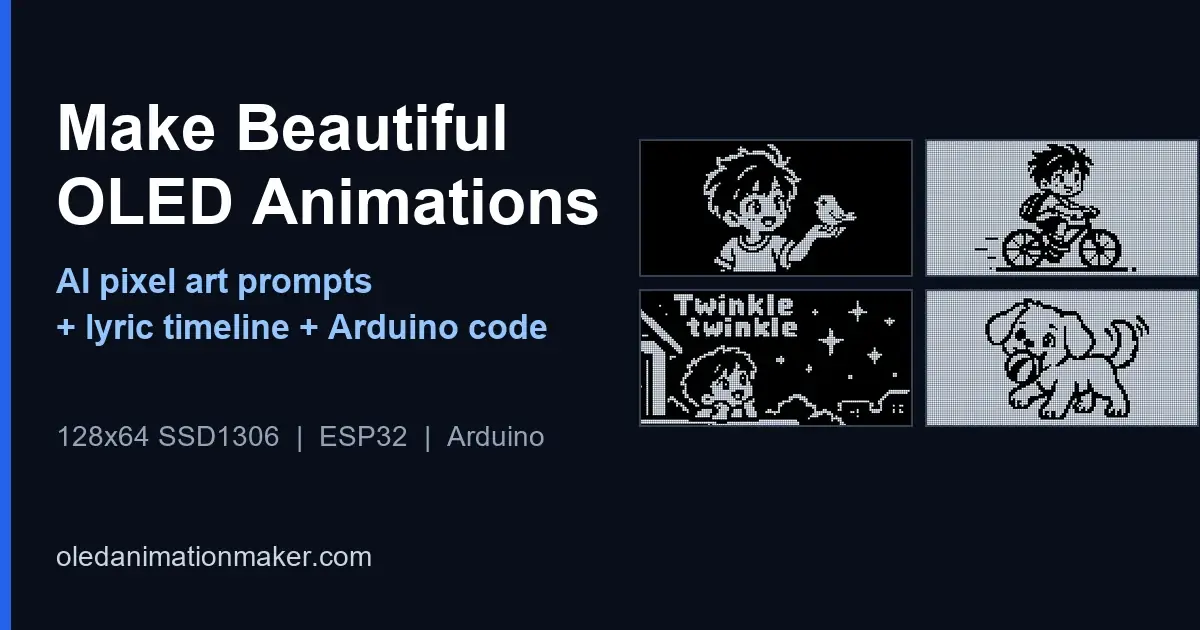
This guide is the workflow I use to get animations that read clearly from a meter away. You'll write art prompts for an AI image tool, lay out song lyrics as a four-panel timeline, import the pictures into the free OLED Animation Maker (no code and no installs), and play the result on an ESP32 or Arduino. Every step is something you can copy and run today, and I'll point out the traps along the way.
What you will build
- A set of 128×64 pixel art frames that stay sharp on your real OLED
- A lyric or caption timeline, with one line of text per frame
- A ready-to-flash Arduino or ESP32 project exported by the free tool, so you don't trace anything by hand
- A sketch that loops your frames with steady timing
Parts you need and where to buy them
It's all cheap and easy to find. You only need one display, one board and a few wires.
| Part | What to buy | Tip |
|---|---|---|
| OLED display | 0.96 inch (about 24 mm) 128×64 SSD1306, I2C | Choose the 4-pin I2C version (GND, VCC, SCL, SDA). The 7-pin ones are SPI, and they won't work with this guide. |
| Board | ESP32 dev board, or Arduino Uno or Nano | Pick an ESP32 if you want more than about 25 frames, because an Uno won't hold them. |
| Wiring | Breadboard and jumper wires | Keep your I2C wires short so fast I2C stays stable. |
| Power and upload | USB cable (data, not charge-only) | A charge-only cable is the top reason a board isn't detected. |
Where to buy: in the US and Canada, Adafruit, SparkFun, Digi-Key, Mouser and Amazon all carry
SSD1306 modules and ESP32 or Arduino boards, and RobotShop ships within Canada. In the UK, check The Pi Hut and
Pimoroni. In Australia, Core Electronics and Jaycar stock them. Prices and stock change, so compare a couple of
sellers before you order. Look at the silk-screen on the back to confirm your I2C address, which is usually
0x3C.
Why most OLED art looks bad
Four problems cause nearly every ugly result you'll see:
- Too much detail. Fine lines of 1 or 2 pixels vanish or flicker, so don't count on them.
- Gray tones. The panel can't show gray, so a threshold turns soft shading into random noise.
- Wrong shape. The screen is 2:1. A square drawing gets squashed or leaves you with empty bars.
- Small text. Letters under about 8 pixels tall aren't readable at a glance.
Here's the fix for all four. Draw simple, thick, high-contrast shapes in a 2:1 frame and keep the words short.
The five rules of good 128×64 pixel art
| Rule | What to do | Why |
|---|---|---|
| Thick strokes | 3 pixels wide as the default | You'll still see it from a distance, and it survives resizing |
| One subject | A single clear silhouette | Small screens can't show crowded scenes |
| 2:1 frame | Design at 1024×512, shrink to 128×64 | No squashing, no empty bars |
| Pure 1-bit | Only black and white, flat fills | No threshold noise, no dithering mess |
| Short text | 2 to 3 words per line, bold font | You can read it in a second |
3 pixels or 4 pixels?
On a 64-pixel-tall screen a 3-pixel stroke is about 5% of the height, and a 4-pixel stroke is about 6%. That looks like a small gap, but it changes what you can fit. With 3 px lines you can draw eyes, a mouth and a few small features and the face still reads. With 4 px lines, gaps under 4 pixels merge into a blob, and you don't want that. Use 3 px as your default, and don't overthink it. Switch to 4 px only for one big shape with no inner detail, like a heart or a battery icon.
Step 1: Generate the art with an AI image tool
Any image generator can do this: ChatGPT, Gemini, Leonardo, Midjourney. The trick is to
be strict about the format, or you'll get soft gray art. Replace [SUBJECT] with something simple, like "a smiling robot
face" or "a rocket".
White art on a black background (best for a real OLED, since white pixels are the lit ones):
Pixel art icon of [SUBJECT], 2:1 wide aspect ratio (128x64 pixel grid), pure black and white only (1-bit monochrome), white subject on solid black background, thick bold chunky outlines at least 3 pixels wide, extremely simplified shapes, large blocky pixels, no anti-aliasing, no gradients, no dithering, no shading, no gray tones, no text, centered composition, high contrast, retro OLED display style, clean sharp pixel edges.Samples from this prompt
Only the subject changed, so you can judge each one fairly. Left is what ChatGPT made, right is the same image shrunk to 128×64 and thresholded, one square per OLED pixel.
AI outputAt 128×64
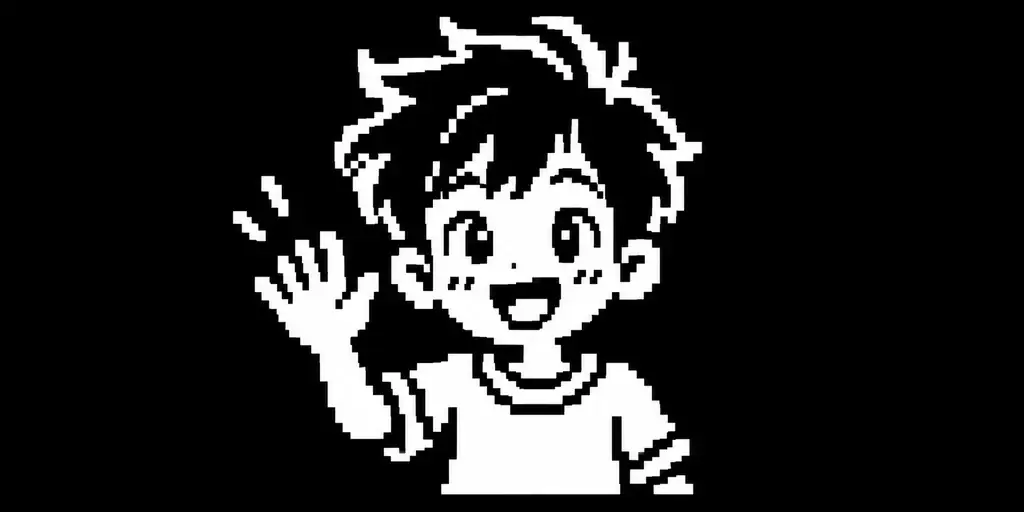
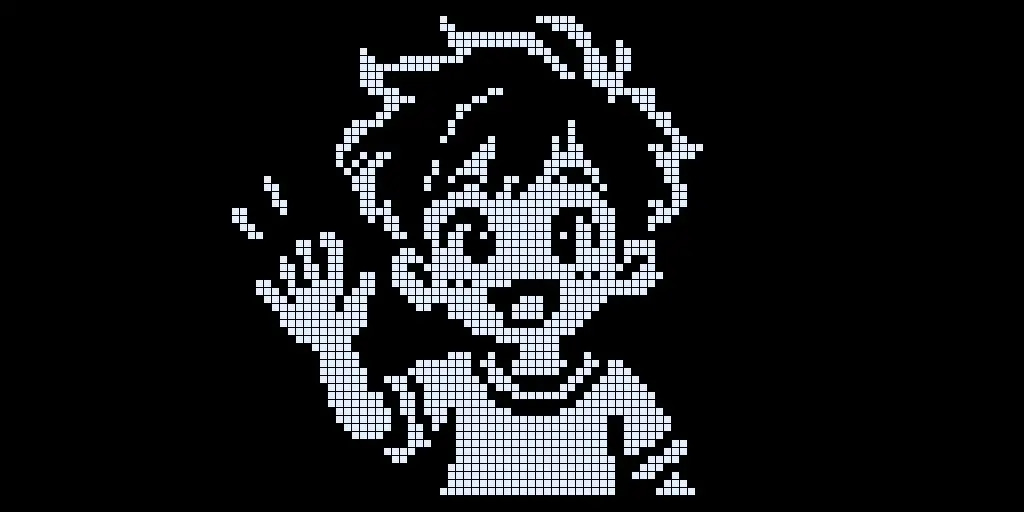
A happy boy waving. Reads clearly. The hair, eyes, smile and hand all stay sharp.
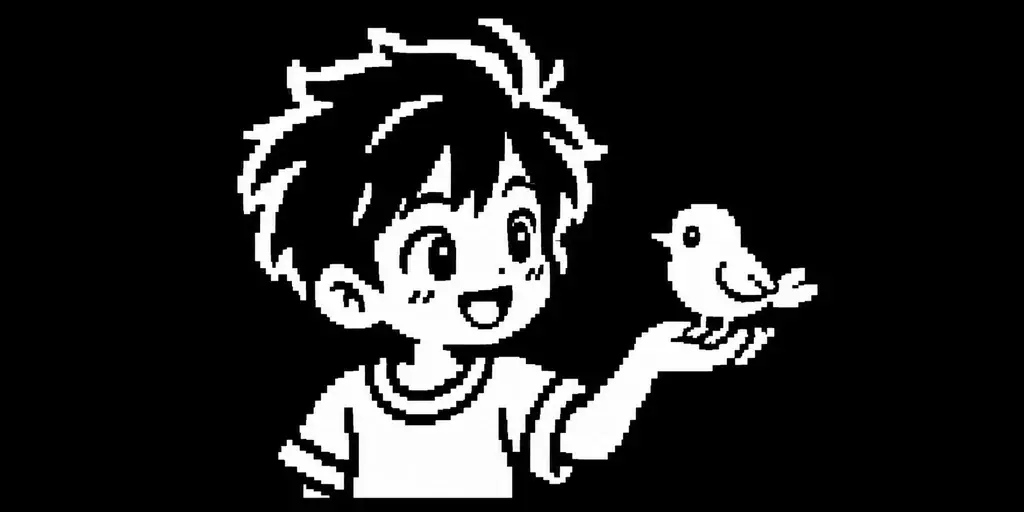
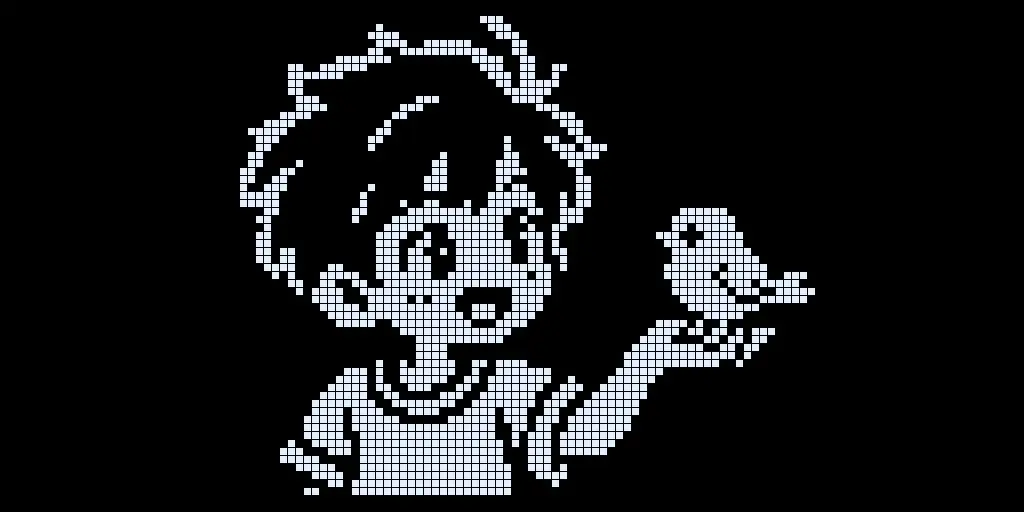
A small boy with a bird on his hand. Reads clearly. The bird's a simple shape, so it survives.
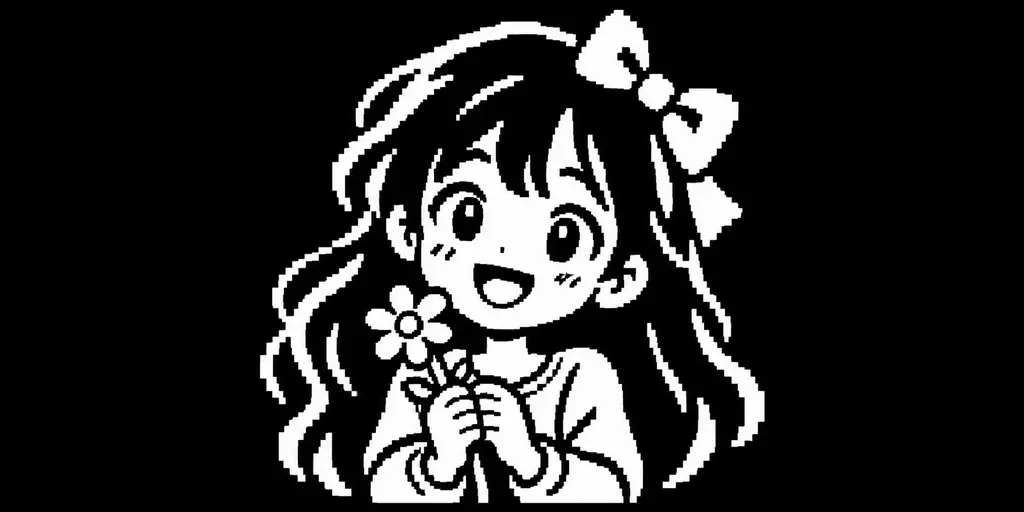
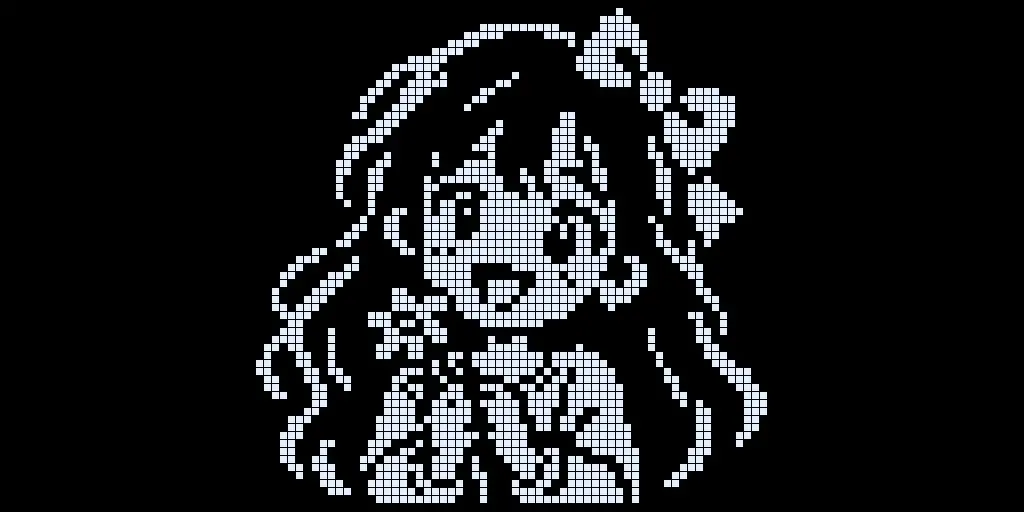
A girl with long hair and a flower. That's the limit case: the bow and face hold, but the thin hair strands and hands break up. Ask for "a hair bun" instead and it'll hold up.
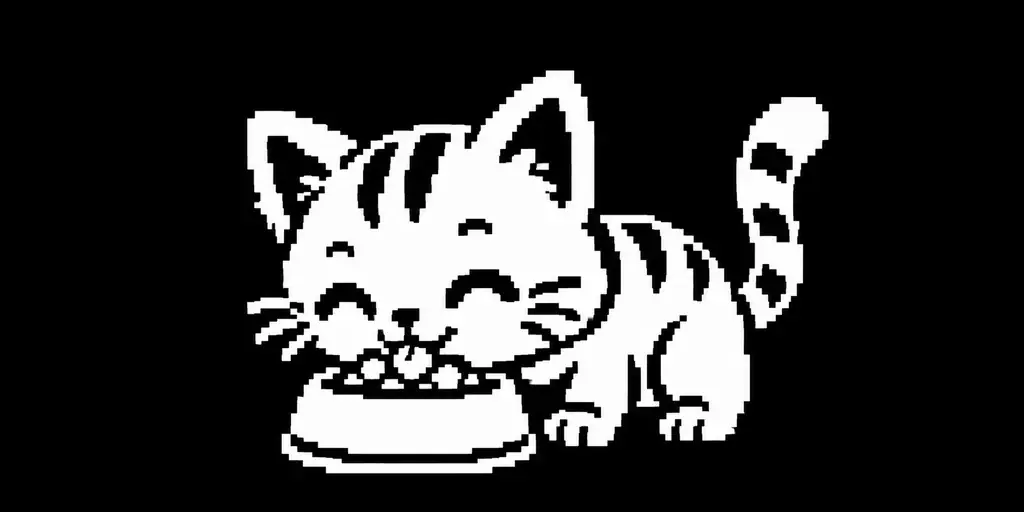
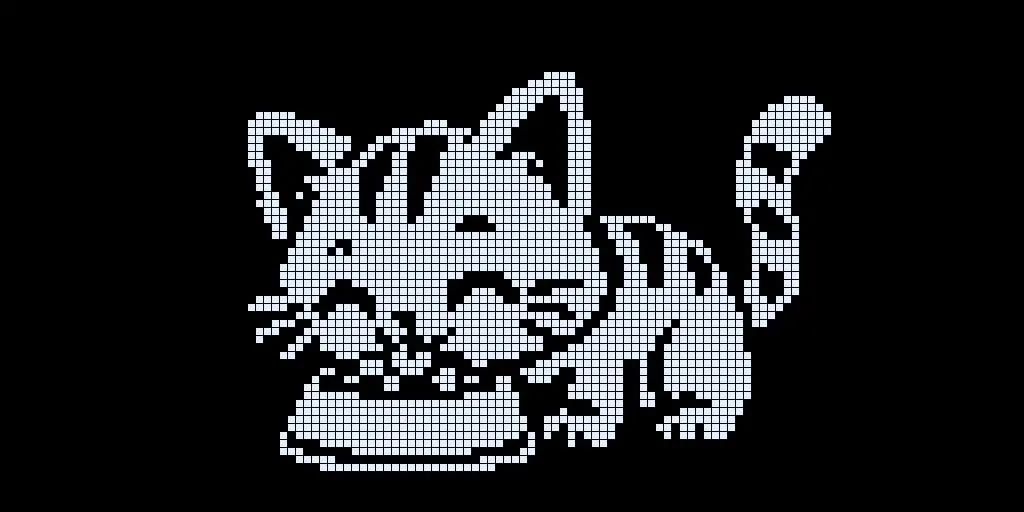
A cat eating from a bowl. The shape reads, but the stripes and closed eyes merge, so you'll want to add "plain solid cat, no stripes".
Black art on a white background (good for previews and the inverted look):
Pixel art icon of [SUBJECT], 2:1 wide aspect ratio (128x64 pixel grid), pure black and white only (1-bit monochrome), black subject on solid white background, thick bold chunky outlines at least 3 pixels wide, extremely simplified shapes, large blocky pixels, no anti-aliasing, no gradients, no dithering, no shading, no gray tones, no text, centered composition, high contrast, retro OLED display style, clean sharp pixel edges.Samples from this prompt
Same idea with the colors flipped. These are the simple-shape versions: a hair bun, plain fur and one clear subject. On a real OLED the white background would be the lit part of the screen.
AI outputAt 128×64
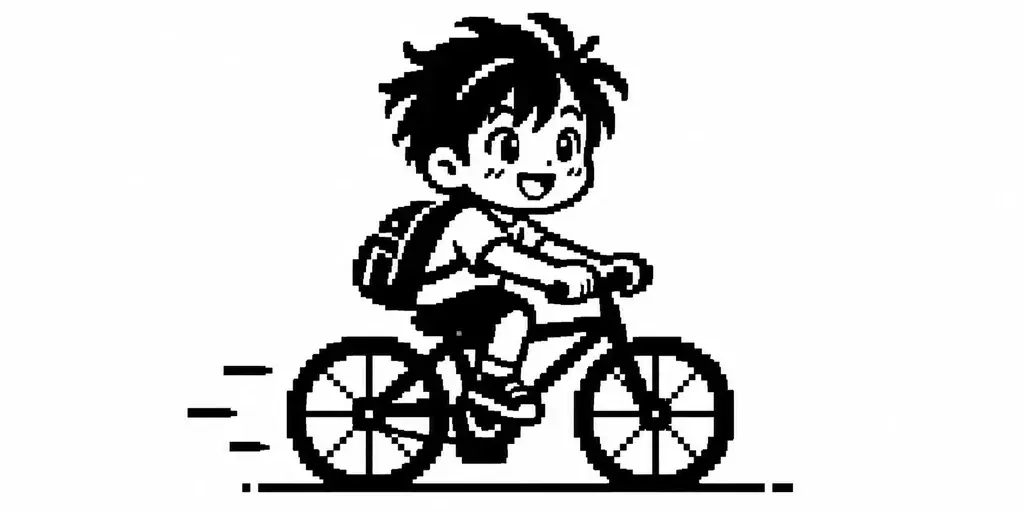
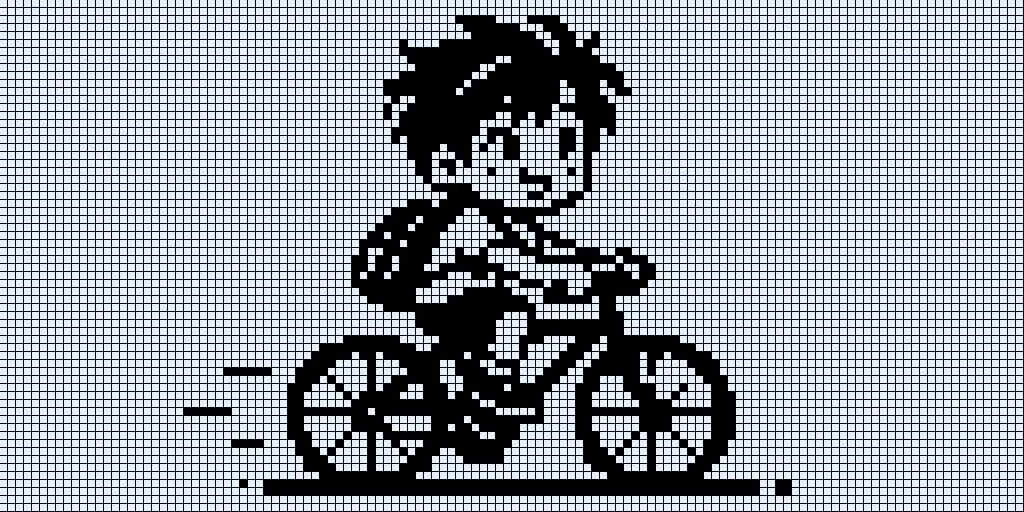
A boy riding a bicycle. Works well. Thick outlines, clear wheels, and even the speed lines survive.
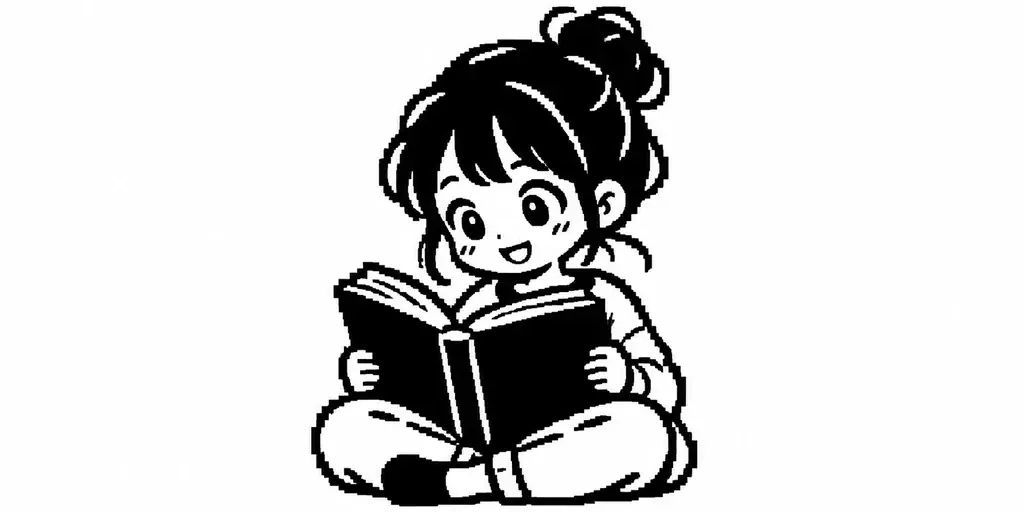
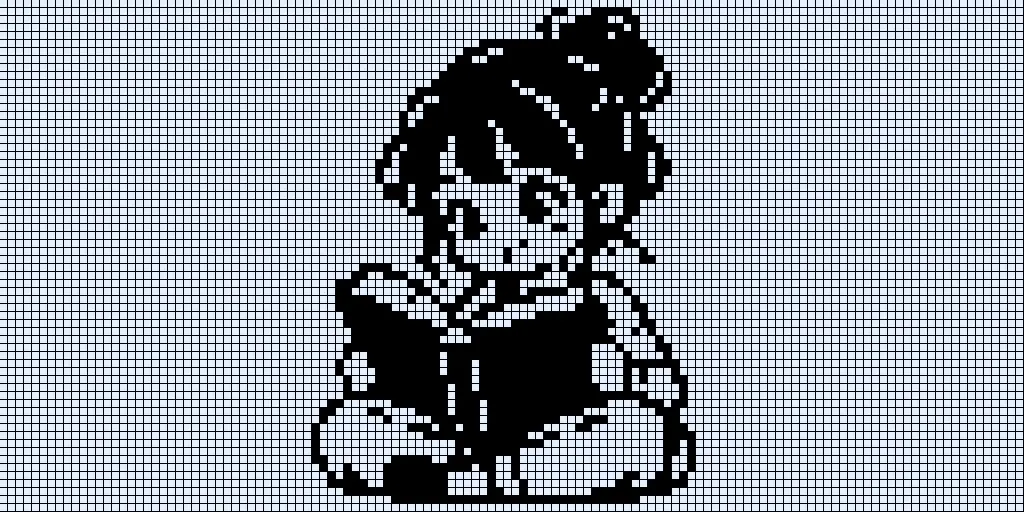
A girl with a hair bun reading. Works well. The solid black book gives you a strong shape, and the bun's much cleaner than long hair.
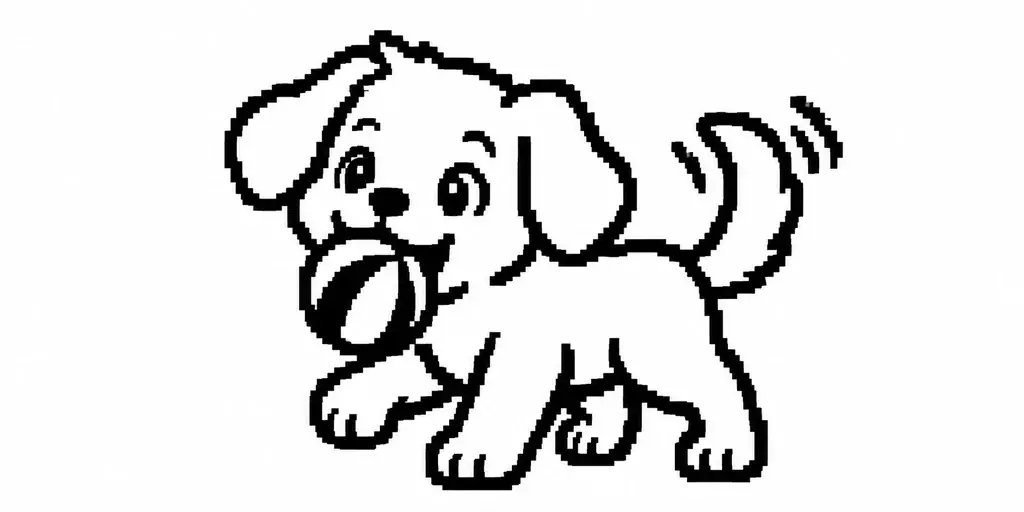
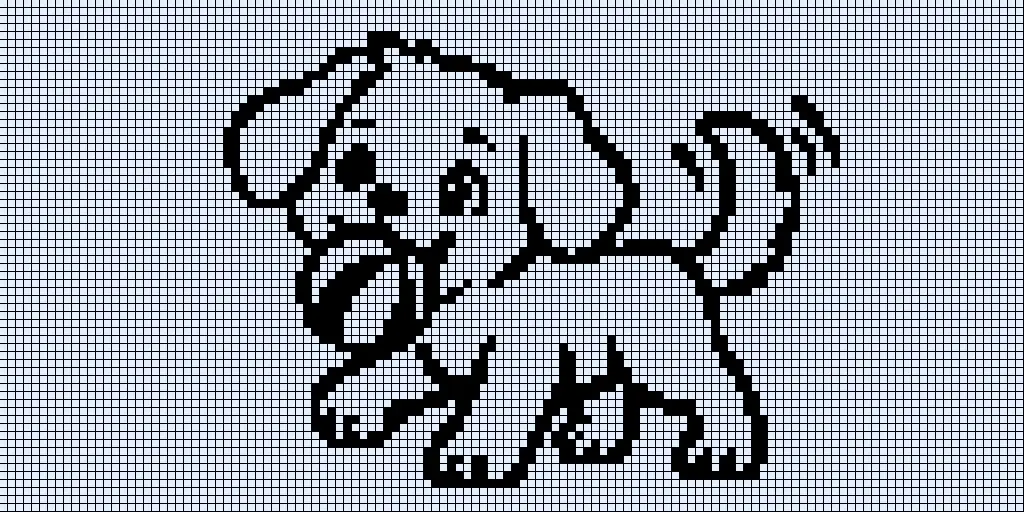
A dog with a ball. Works well. Plain fur with no spots keeps the outline clean. The ball's a little muddy.
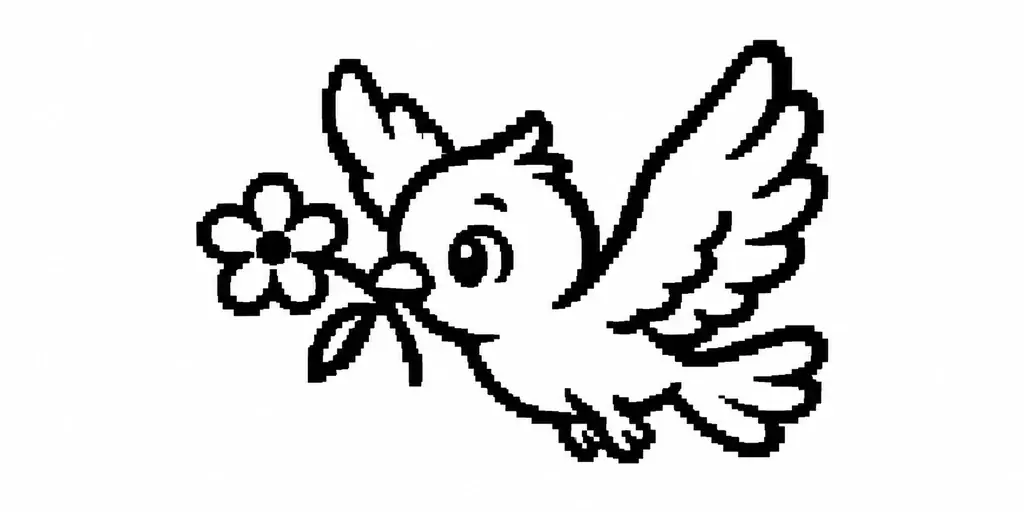
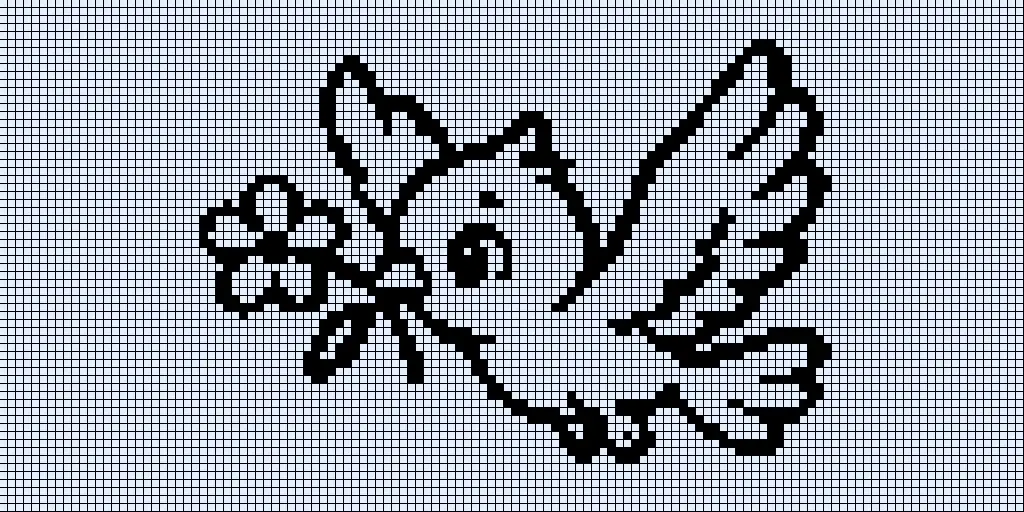
A bird flying with a flower. It's the cleanest of the four. One bold subject and no fine detail.
If your tool has a separate "negative prompt" box, paste this there. Tools without one, like ChatGPT, will follow your main prompt on their own:
gradient, blur, anti-aliasing, grayscale, color, thin lines, fine detail, shadows, texture, noise, 3D, realistic, text, watermark, borderA note on power and burn-in
On an OLED, every white pixel is a lit pixel. A mostly white screen draws more current and ages faster, and a static image can leave a ghost over time. I'd pick white art on black for anything that stays on. If you like the black-on-white look, design it that way but invert it in code, or let it run only for short demos.
Step 2: Make a lyric or caption timeline
A single frame is a poster. A sequence is a story. The simplest way to plan one is a four-panel strip: line 1 in panel 1, line 2 in panel 2, and so on. Ask for it as one image so the character and style stay the same across all four panels, then cut the panels into separate frames later. I'll show you how below.
Here's the pattern, filled in with a public-domain song so there's no copyright question. Swap in your own words, and only use lyrics you have the right to use:
Song: "Row, Row, Row Your Boat"
Panel 1 lyric: "Row row row your boat"
Panel 2 lyric: "Gently down the stream"
Panel 3 lyric: "Merrily merrily"
Panel 4 lyric: "Life is but a dream"

Create ONE pixel art comic-strip image that tells this song as a timeline in 4 panels. 2:1 wide aspect ratio (128x64 pixel grid), divided into a 2x2 grid of 4 equal panels, read left to right, top to bottom: panel 1 top-left, panel 2 top-right, panel 3 bottom-left, panel 4 bottom-right. Separate the panels with thin white lines. Each panel shows one simple pixel art scene that illustrates its lyric, with the lyric text included in the same panel. You decide the best placement of the text in each panel, for example at the top, at the bottom, or beside the artwork, whichever looks most balanced and attractive. Keep the text from overlapping the artwork. Keep the same character and style across all panels so they feel like one story.

Text rule: break every lyric into short lines. Each line of text holds only 2 to 3 short words, or only 1 to 2 words if the words are long. Never put more than 3 words on one line. Write the text in a bold chunky pixel font, as large as will fit and easy to read.

Strictly 1-bit: only pure white (#FFFFFF) and pure black (#000000) pixels, white artwork and white text on solid black background. Thick bold chunky outlines at least 3 pixels wide, extremely simplified shapes, large blocky pixels, hard pixel edges. Absolutely no gray, no gradients, no shading, no soft or anti-aliased edges, no dithering, no halftone. Flat solid white fills only. Retro OLED display style, high contrast.

Spell every word exactly as given. Do not add any other text, panel numbers or watermarks.
Samples from this prompt
Four public-domain songs, each made with the strip prompt above. Left is the full strip from ChatGPT. Right is panel 1 shown full-screen at 128×64, one square per OLED pixel.
AI output (4 panels)Panel 1 at 128×64
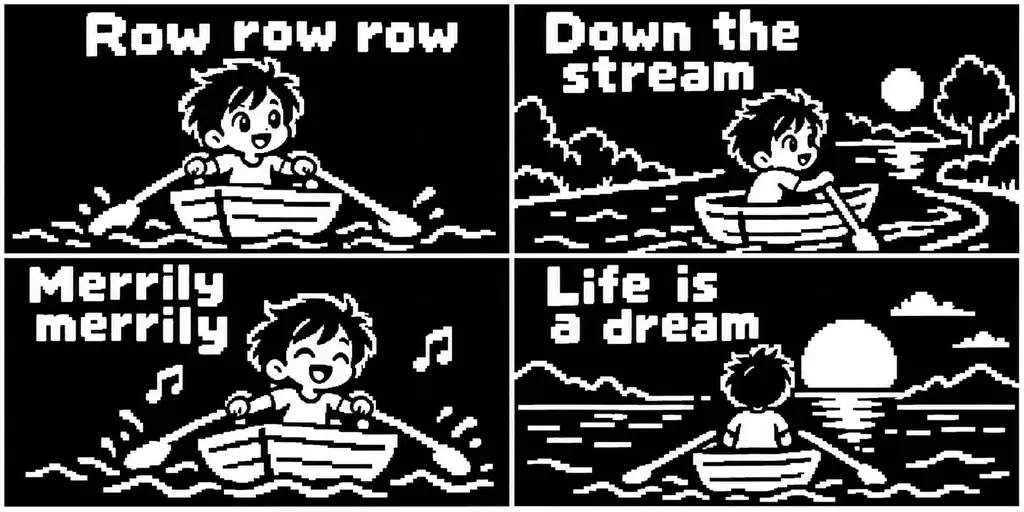
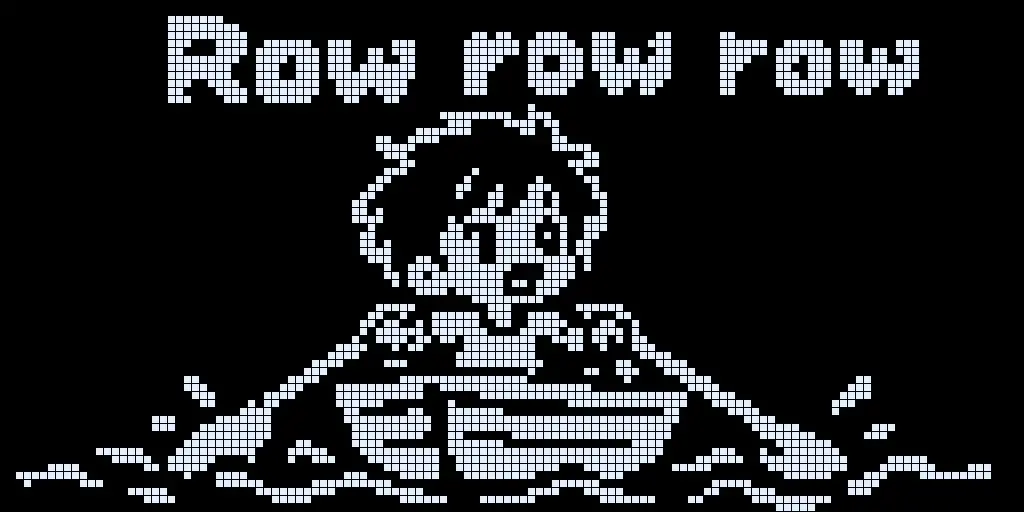
Row, Row, Row Your Boat. "Row row row" / "Down the stream" / "Merrily merrily" / "Life is a dream".
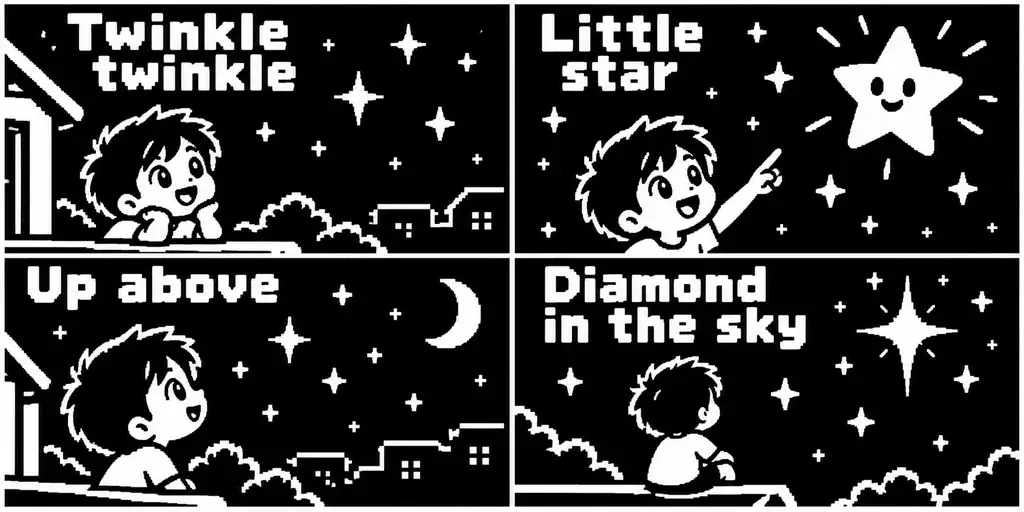
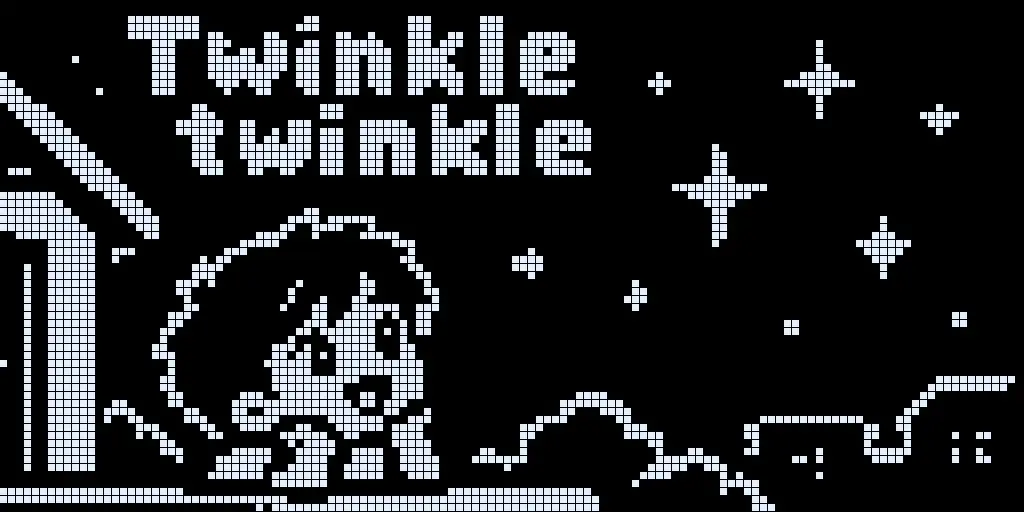
Twinkle Twinkle Little Star. "Twinkle twinkle" / "Little star" / "Up above" / "Diamond in the sky".
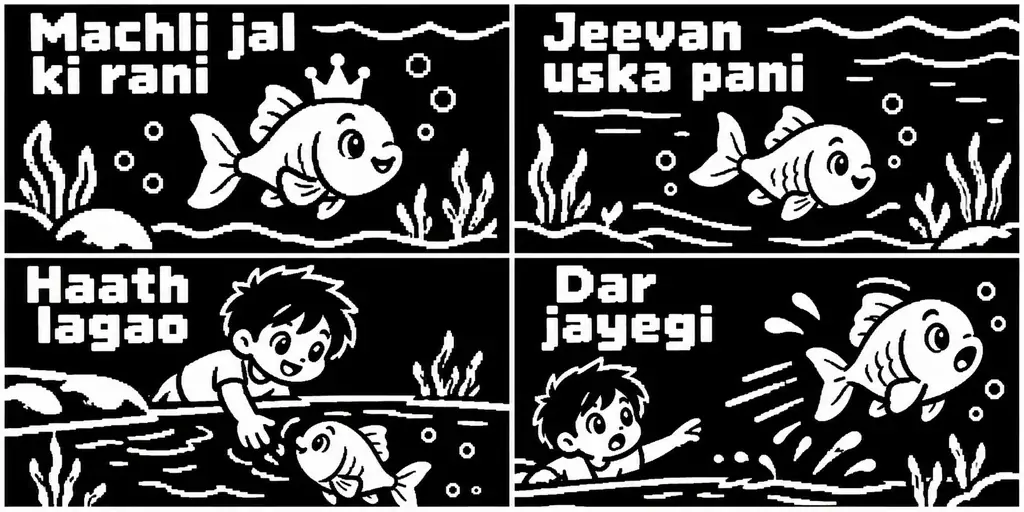
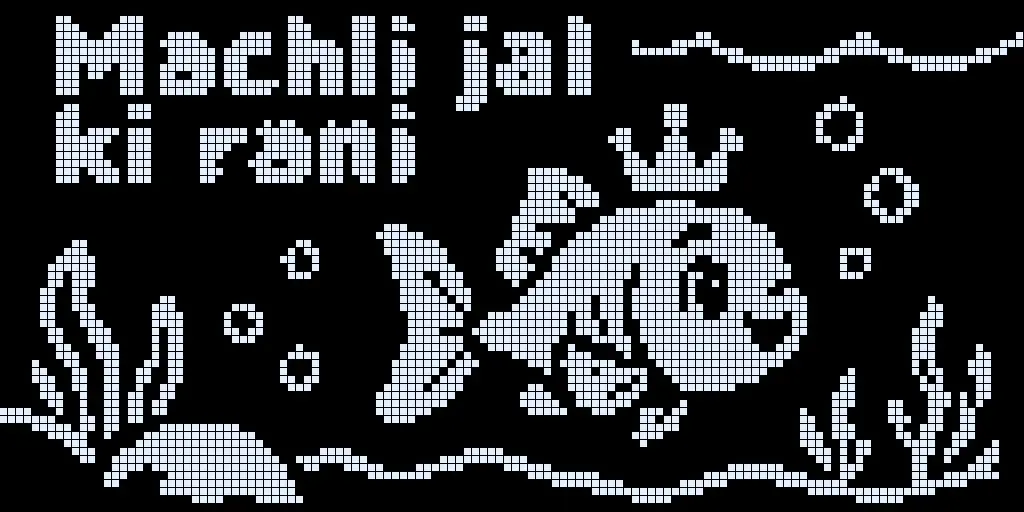
Machli Jal Ki Rani Hai (traditional Hindi rhyme). "Machli jal ki rani" / "Jeevan uska pani" / "Haath lagao" / "Dar jayegi". The Hindi words came out spelled correctly.
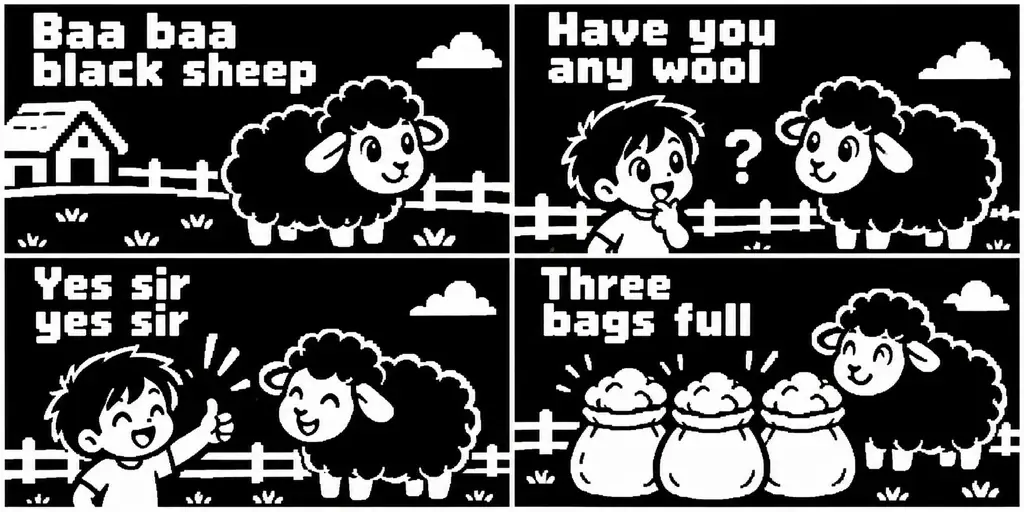
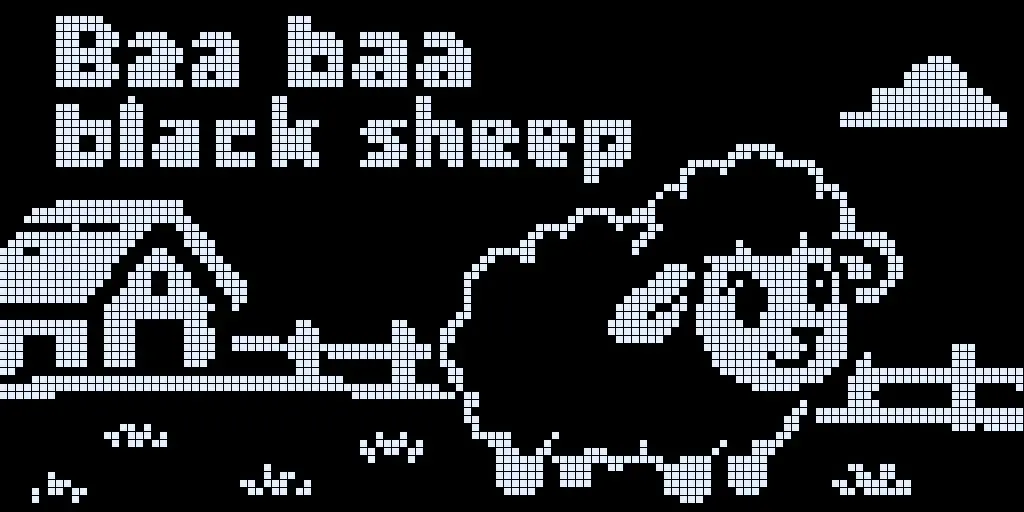
Baa Baa Black Sheep. "Baa baa black sheep" / "Have you any wool" / "Yes sir yes sir" / "Three bags full".
Turn the strip into 4 separate frames
A 2×2 strip is a great plan, but a 128×64 screen can't show more than one panel at a time. Each panel in the strip is just 64×32 pixels, so you can't read the text on the display. Here's the fix: split the strip into four full-size images and play them in order. You can do the whole thing in ChatGPT:
- Generate your 4-panel strip with the prompt above and pick the one you like.
- Save that image, then start a new message and upload it back to ChatGPT.
- Paste the prompt below and send it.
- ChatGPT gives you image 1, image 2, image 3 and image 4, one for each panel, each one full-size.
- Download all four and you'll import them in Step 4.
Upload your strip, then send this, and you're set:
Here is my 4-panel comic strip image. Split it into 4 separate images, one for each panel in order: image 1 = top-left panel, image 2 = top-right panel, image 3 = bottom-left panel, image 4 = bottom-right panel. Each new image must be 2:1 wide (128x64 pixel grid) and show only that one panel's artwork and lyric text, enlarged to fill the whole frame with a small margin, with no panel borders or divider lines. Keep the exact same art, characters, text and spelling, and do not redraw or change anything. Strictly 1-bit: only pure white (#FFFFFF) and pure black (#000000) pixels, white artwork and white text on a solid black background, no gray, no gradients, no shading, no anti-aliasing. Give me image 1 first, then image 2, image 3 and image 4, one after another.Here's what you end up with. These four frames were cut from the Row, Row, Row Your Boat strip and shown at 128×64, so the text is now large enough to read:
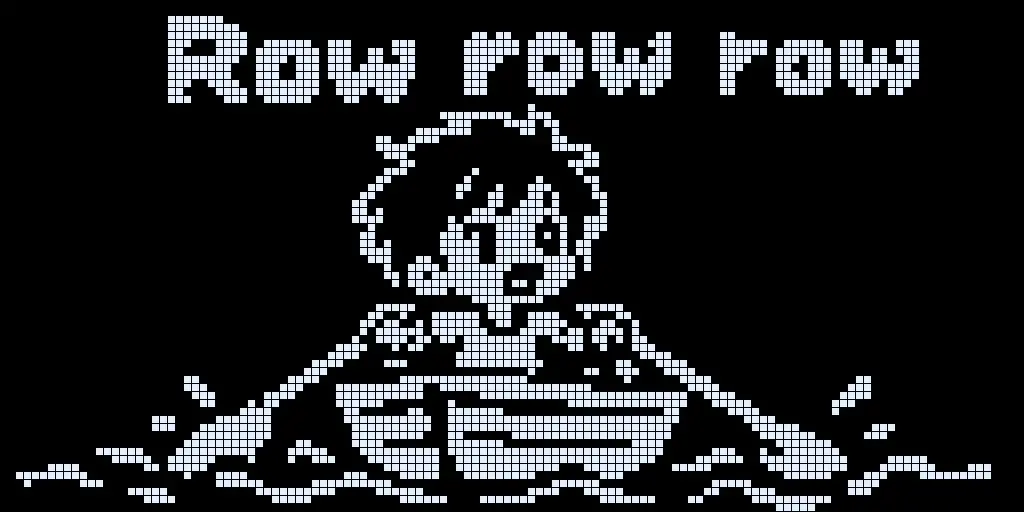
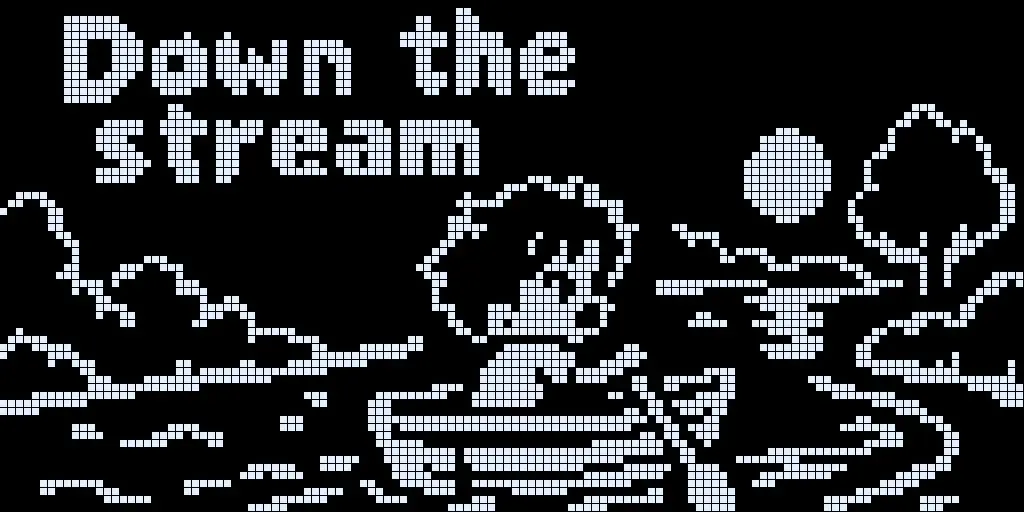
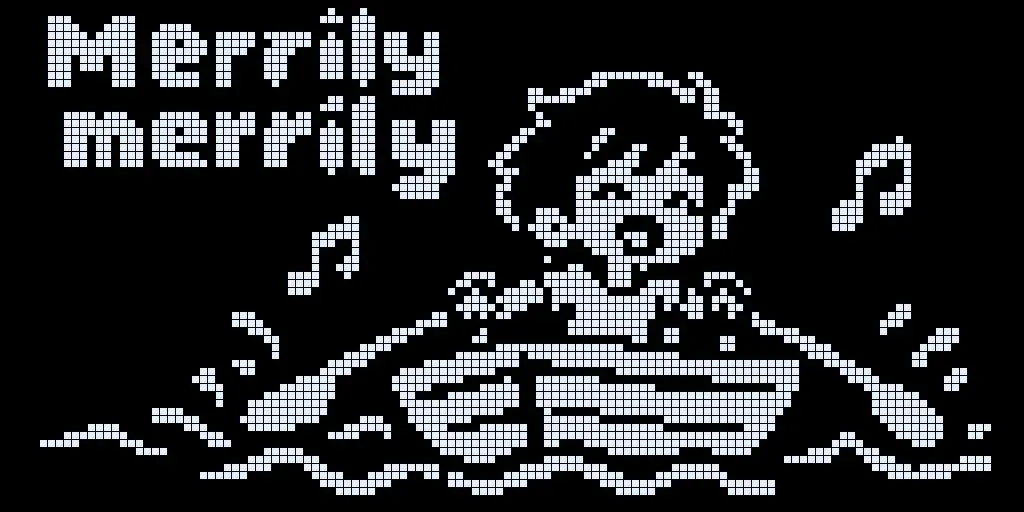
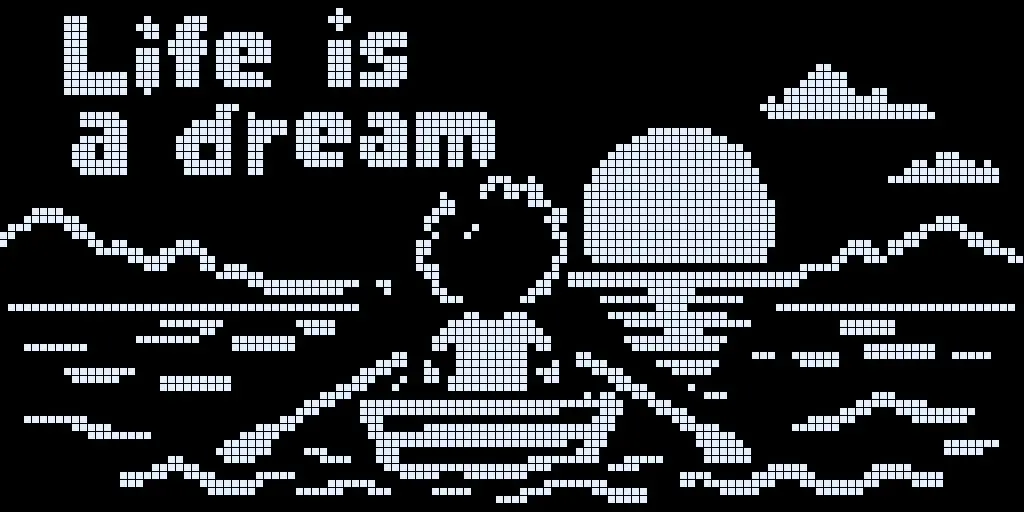
If ChatGPT redraws a panel instead of copying it, reply with: "Don't redraw. Crop that panel exactly as it is and enlarge it." You can also crop the panels yourself in any image editor, and that's always exact.
Make a video or an OLED loop from the 4 frames
- On the OLED: combine the four images into a short GIF or video, import it in Step 4 and play it in order. About 1.5 to 2 seconds per frame suits a lyric line.
- As a video: drop the four images into any video editor, such as CapCut or DaVinci Resolve, and give each one 1.5 to 2 seconds. Add the song underneath and export a vertical or square video for Reels and Shorts.
- Best of both: film the real OLED playing the frames, and use the clip as your Reel.
Text rules that keep it readable
- Two to three short words per line, or one to two long words. A lyric longer than that wraps onto more lines inside its panel, and you'll run out of room fast.
- Use a heavy, blocky, uppercase font. Thin or curly fonts won't survive at this size.
- Each panel on a 2×2 strip is only 64×32 pixels. If the text is too small after resizing, make one full 128×64 image per line instead and play them one after another.
- AI tools sometimes misspell words, especially Hindi, Tamil or other languages written in Roman letters. Reply with "Fix the spelling, the text must be exactly: [your line]".
Step 3: Clean the image to true 1-bit
Even with a strict prompt, an image tool may leave gray shading or soft edges. You'll see it on skin, fabric and ground textures. If you only fix one thing, fix this. You can ask the tool to redo it:
Make it strictly 1-bit: only pure white (#FFFFFF) and pure black (#000000) pixels. Remove all gray, gradients and shading. Keep the same layout and text.For a guaranteed result, don't rely on the AI alone. Let the importer in Step 4 resize the picture to 128×64 and apply a threshold. That removes every leftover gray no matter what the image tool drew, and you see the result live before anything touches your board.
Step 4: Import your pictures into the free OLED Animation Maker
You don't need to write a script or convert anything by hand. The free OLED Animation Maker has an Import tab that takes your AI picture, shrinks it to your display size, turns it into pure 1-bit pixels, shows you a live preview on a virtual OLED, and then writes the complete Arduino, ESP32 or MicroPython code. It all runs in your browser, so there's nothing to install and no account to make.
Import one picture, step by step
I took these screenshots in the real tool with a real AI-generated picture. The red boxes and numbers show where to look.
Step 1. Choose your board and display
Open oledanimationmaker.com. In the bar at the top, choose your
board (for example Arduino Uno or ESP32), the display (0.96" 128×64 SSD1306), the I2C address (usually
0x3C) and the library (Adafruit SSD1306 is the easiest). You can also pick the OLED color, so the
preview looks like your panel.

Step 2. Open the Import tab
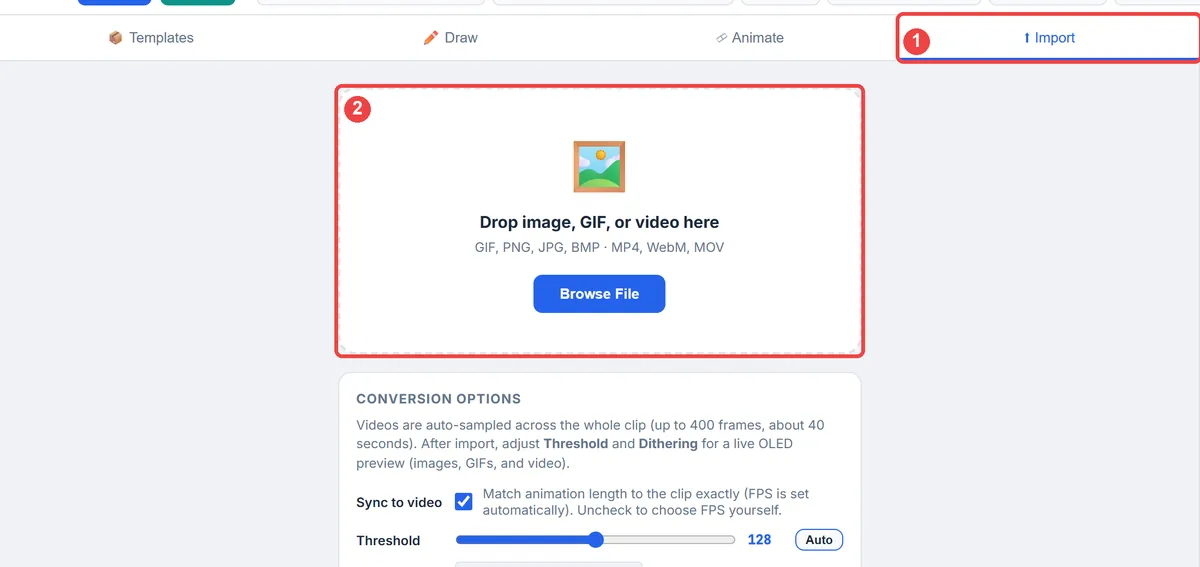
Click Import (box 1), then drag your picture into the dashed box (box 2) or press Browse File. PNG and JPG are the safest. WebP images also worked in our test. GIF, BMP, MP4, WebM and MOV files work too.
Step 3. Check the live preview
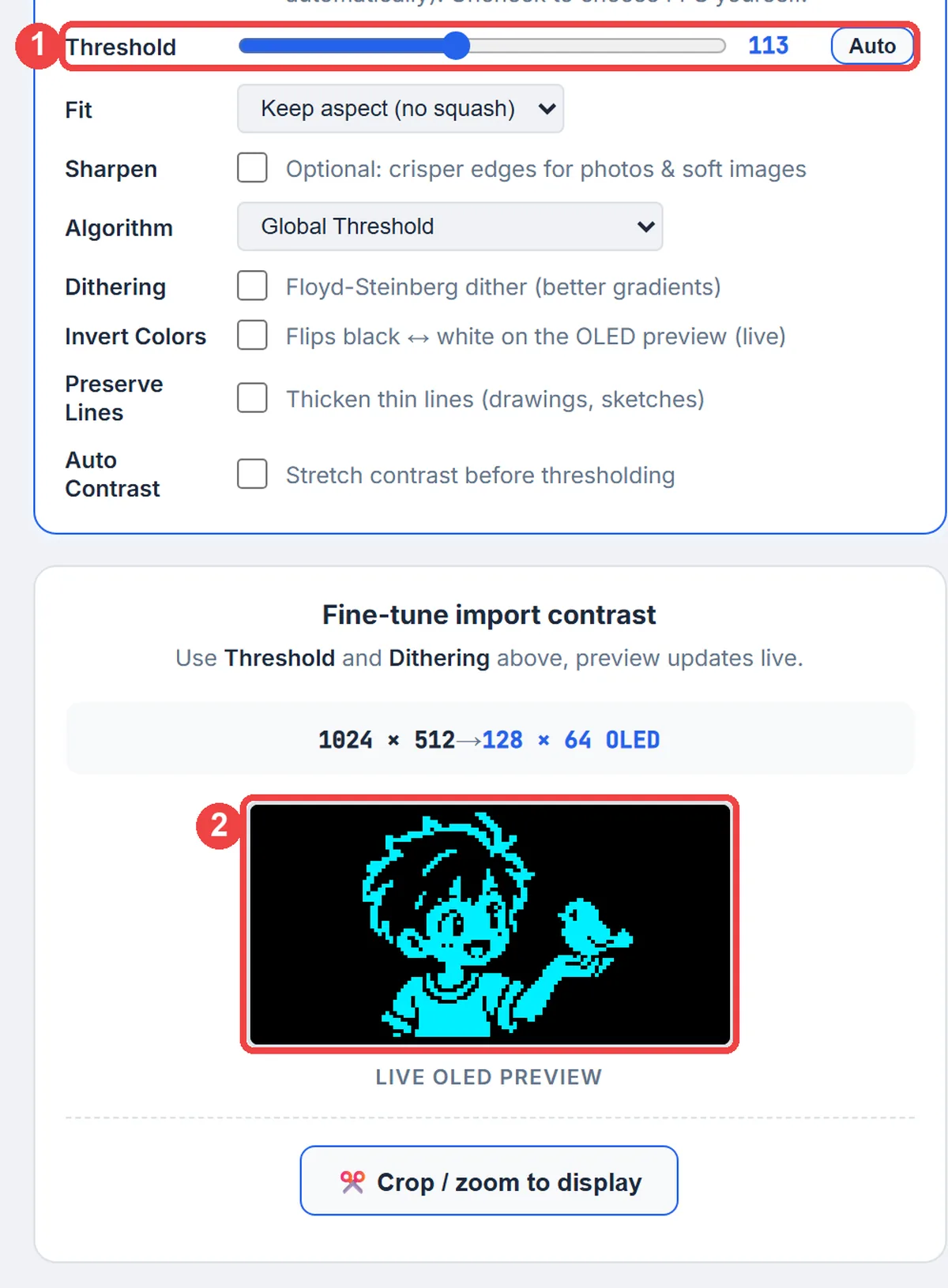
As soon as the picture loads, the tool prints the size change, for example 1024 × 512 → 128 × 64 OLED,
and shows the 1-bit result on a small OLED (box 2). It also picks a starting threshold for you (box 1, here 113) so
thin lines and text stay readable. If the preview looks right, you're good to move on.
Step 4. Tune the settings only if you need to
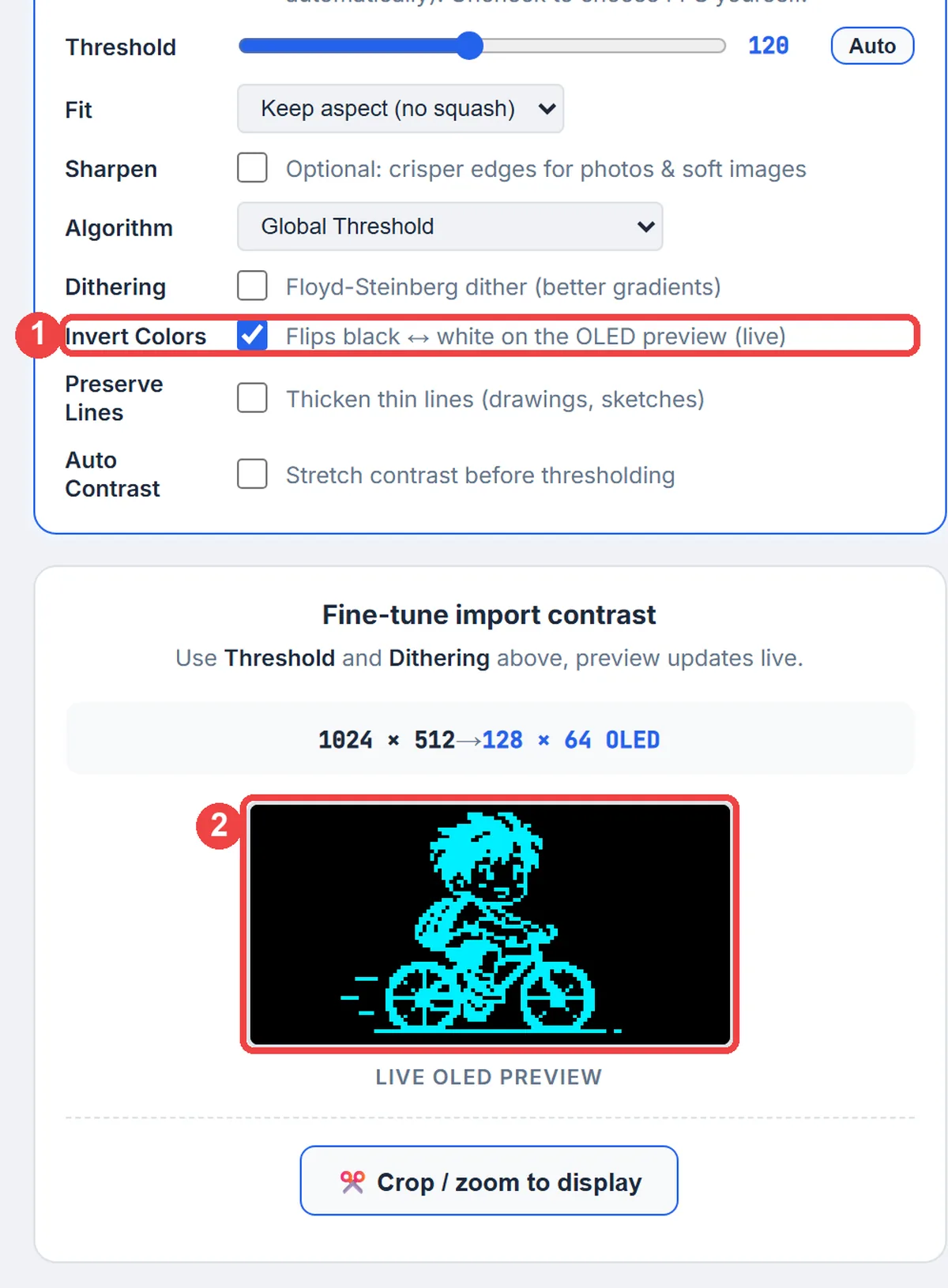
Most clean pixel art doesn't need any changes. If you imported black art on a white background and want the figure to be the lit part of the screen, tick Invert Colors (box 1). The preview flips instantly (box 2). The table below explains every option, so you don't have to guess.
Step 5. Press View Animation
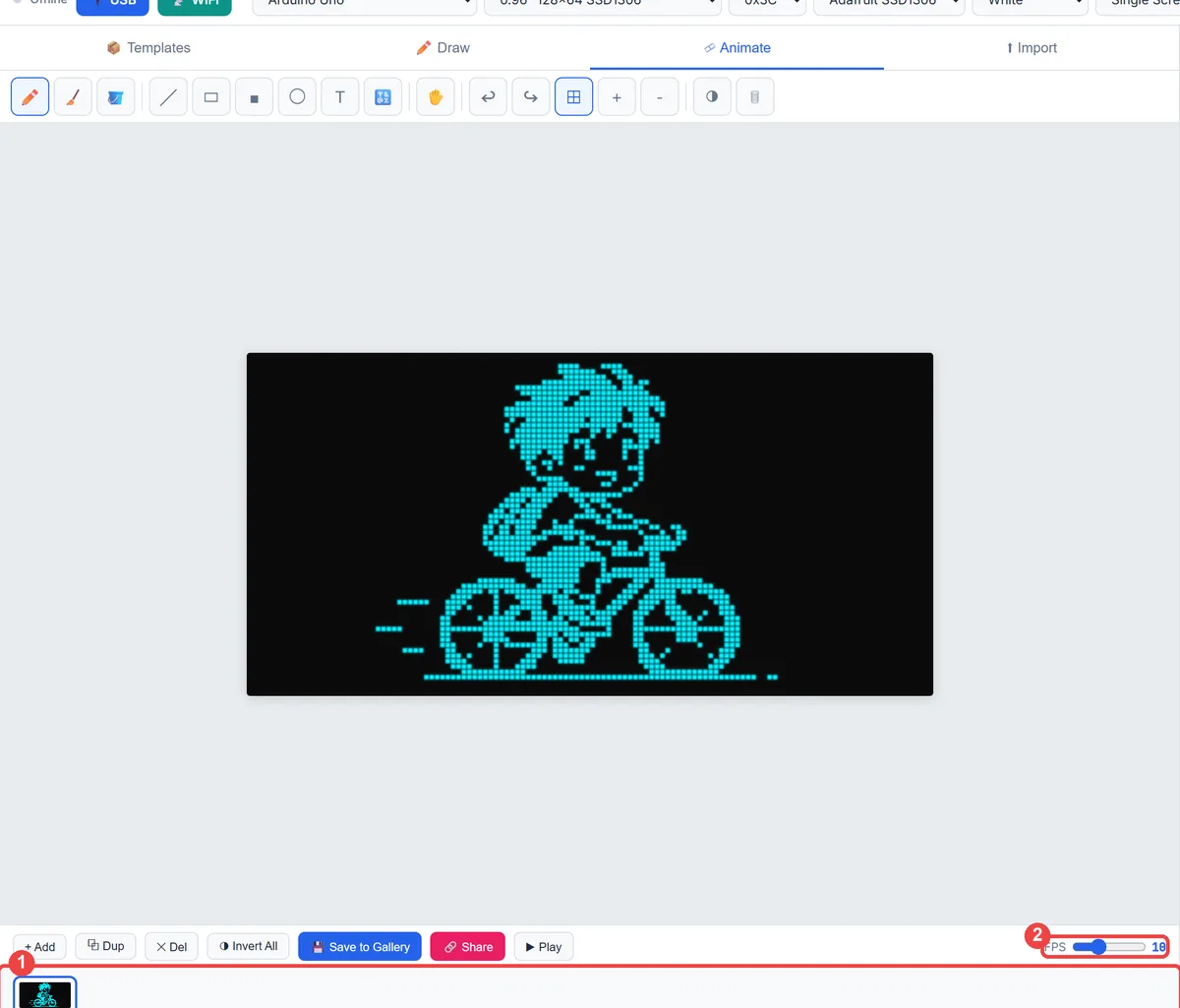
Scroll down in the Import tab and press View Animation. The picture opens in the Animate tab as frame 1 (box 1), with a virtual OLED, the wiring diagram and the play controls. The FPS slider (box 2) sets the speed.
What each import setting does
| Setting | What it does | When to change it |
|---|---|---|
| Threshold (slider and Auto button) | Pixels brighter than the threshold become lit, darker ones become unlit. The default's 128. Auto picks a value that keeps thin lines and text readable. | Click Auto first. If your details vanish, nudge the slider a little. If gray blobs appear, nudge it the other way. |
| Fit | Keep aspect (no squash), Fill screen (center crop) or Stretch to fit display. | Leave it on Keep aspect. A 2:1 picture fills the 128×64 screen exactly. Use Fill only if you're fine with cropping, and avoid Stretch because it distorts faces. |
| Sharpen | Makes edges crisper for photos and soft images. | You don't need it for clean pixel art. Try it on blurry pictures. |
| Algorithm | Global Threshold, Bradley Adaptive (best for line art) or Sauvola Adaptive (uneven lighting). The adaptive modes add Window Size and Sensitivity sliders. | Global suits AI pixel art, so that's your default. Switch to Bradley for thin outlines and to Sauvola for photos of paper or pictures with a shadow. |
| Dithering | Floyd-Steinberg dither, which fakes gray with patterns of dots. | Turn it on for photos with gradients. Keep it off for pixel art and lyric text. The dots only add noise there, and you'll see it. |
| Invert Colors | Flips black and white in the live preview. | Turn it on for black-on-white artwork if you want the figure lit on a dark screen. It also saves a little power, because fewer pixels are lit. |
| Preserve Lines | Thickens thin lines. | Use it for sketches and hand drawings. Leave it off for text, since it can fatten your letters. |
| Auto Contrast | Stretches the contrast before the threshold is applied. | Use it if your picture is washed-out or dark. |
| Crop / zoom to display | Lets you crop the picture to the part you want on the screen. | Use it to cut one panel out of a four-panel lyric strip, or when you want to zoom in on a face. |
Good starting settings by picture type
| Your picture | Algorithm | Other settings |
|---|---|---|
| AI pixel art, white on black | Global Threshold | Press Auto. Dithering off. Invert off. |
| AI pixel art, black on white | Global Threshold | Press Auto. Dithering off. Turn Invert on if you want the art lit. |
| Lyric or text frame | Global Threshold | Press Auto. Dithering off. Sharpen and Preserve Lines off. |
| Thin line drawing | Bradley Adaptive | Preserve Lines on. Dithering off. |
| Photo | Sauvola Adaptive if the light is uneven | Auto Contrast on. Dithering on. Sharpen if it looks soft. |
Worked example: the boy and the bird
To check this guide, we imported the boy-and-bird picture from the samples above. It was a 1024×512 WebP made
with the white-on-black prompt. The tool showed 1024 × 512 → 128 × 64 OLED, picked a threshold of
113 on its own, kept Fit on Keep aspect and left Dithering off. The live preview showed the boy, the bird and the
hand with all the thick outlines intact, and after View Animation the picture sat in the editor as a single
1024-byte frame. We didn't touch another setting, which is the usual result when the picture follows the strict
1-bit prompt.
Turn several pictures into one animation
The importer takes one file at a time, and importing a new file replaces the animation you have open. That's fine for a single picture. For a lyric story with several lines, combine the pictures into one short file first, then import that file. There are two easy ways to do it.
Option A: make a GIF.
- Put your four 2:1 pictures into any free GIF maker, such as ezgif.com, in the order of the lyric, and export a GIF.
- Import the GIF. The tool decodes it into one frame per picture, so you don't split anything by hand.
- Open the Animate tab and move the FPS slider (it goes from 1 to 30). At 1 FPS each frame stays on screen for one second. To hold a line for two seconds, select the frame and press Dup to copy it.
Option B: make a short video.
- In a video editor such as CapCut or DaVinci Resolve, give each picture two seconds and export an MP4. A four-line lyric becomes an eight-second clip.
- Import the MP4. In the options, set Video frames to 8, which is two samples per picture, and keep Sync to video ticked. The tool then sets the FPS so that the animation lasts exactly as long as the clip, which here works out to 1 FPS and two seconds per line.
- Press Play. For a video, the clip's sound plays with the preview, which is handy for recording a Reel of your lyric animation. If you add a song, only use music you have the rights to.
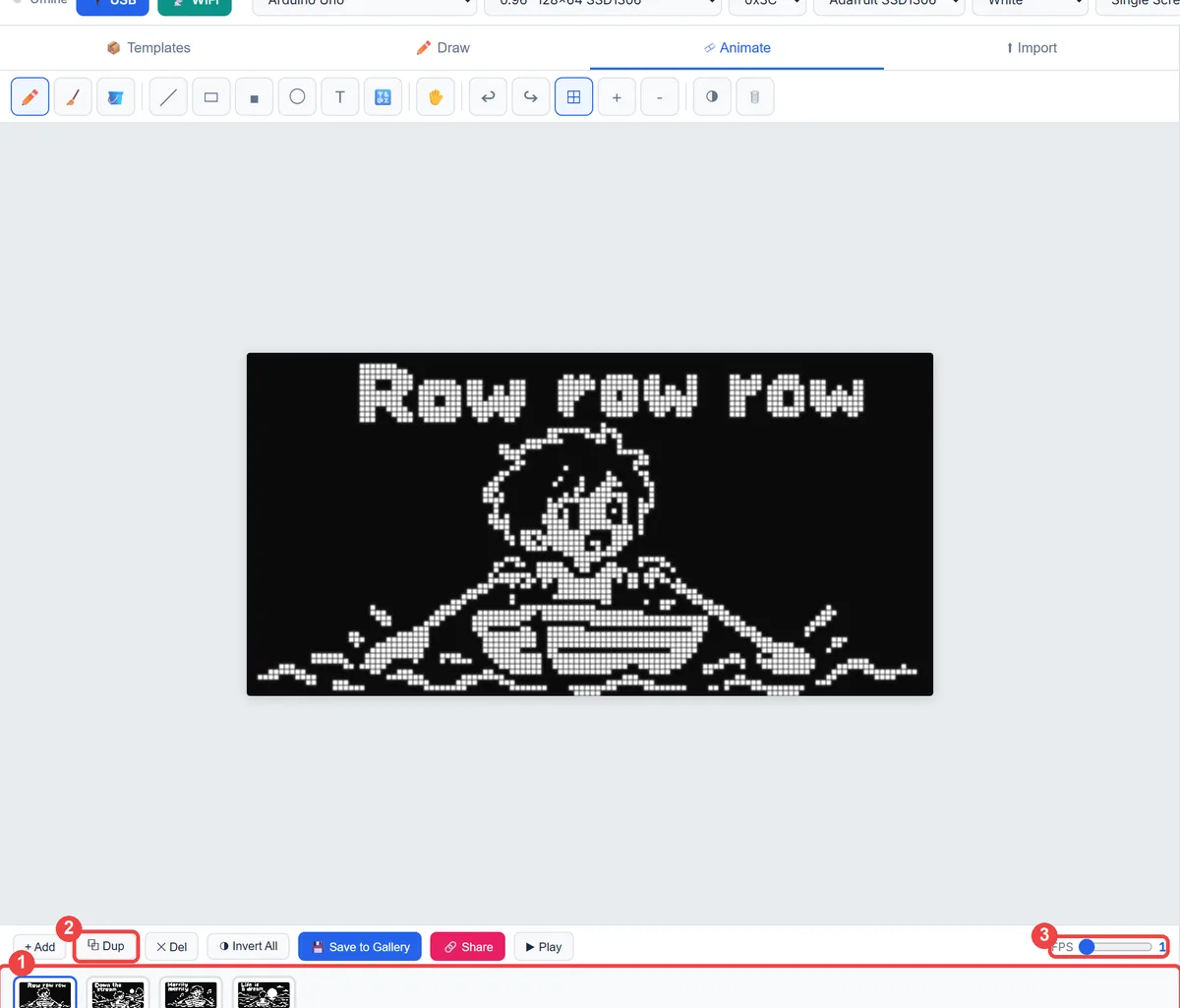
Whichever route you use, the Animate tab gives you + Add, Dup, Del and Invert All buttons for editing frames, plus Save to Gallery to keep the animation in your browser and Share to send a link. Each frame is a full 128×64 bitmap, so remember the flash budget in the table further down. It'll cap how many frames you can use.
Check it before you flash
- Press Play and watch the virtual OLED. If the text is hard to read there, it'll be hard to read on the real screen.
- Open the wiring panel under the preview to see the connection diagram and pin table for your board.
- Want to see it on real hardware without re-uploading? The tool can stream animations to your board over USB, see how to live connect your OLED with WebSerial, or over WiFi, see the wireless WiFi OLED guide.
- Prefer to try ideas without a board? The free OLED simulator runs in your browser.
Step 6. Get the code
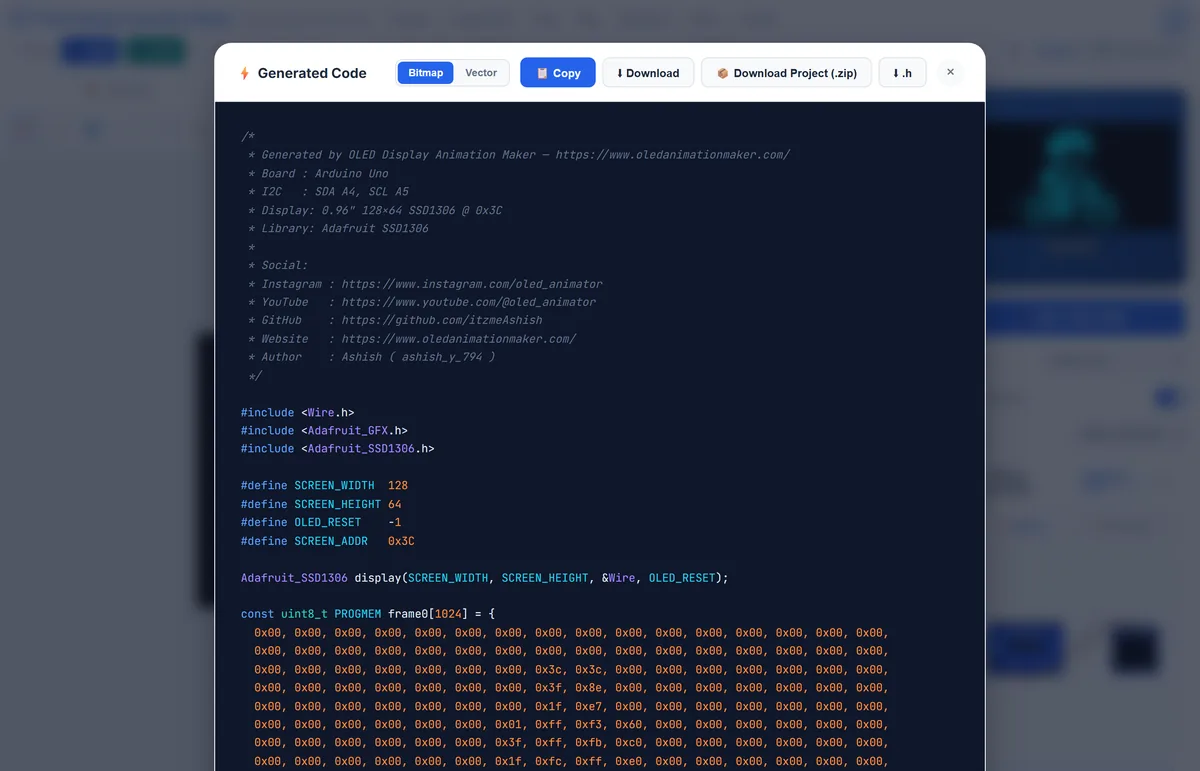
- Press the blue Get the Code button. A window opens with the generated sketch.
- Choose the Bitmap tab for imported pictures. The Vector tab is for shapes you draw in the tool.
- Press Copy to paste into the Arduino IDE, Download for the sketch file, Download Project (.zip) for a tidy folder with separate sketch and header files, or .h for the image data only.
- In the Arduino IDE, install the Adafruit GFX and Adafruit SSD1306 libraries (the header of the generated code tells you which library it used), select your board, and upload.
The exported code stores every frame in flash as a 1024-byte array (16 bytes per row, 64 rows) and draws it with
drawBitmap(), so the maths in the memory section below applies to whatever you export. If you want
to learn how these sketches work, or change the timing by hand, the next step shows a small hand-written version.
The longer guides on this site cover the other import paths in detail: GIF to OLED, MP4 to OLED and image to byte array.
Step 5: Play it on the display
The sketch you get from Get the Code already plays your frames, so you can upload it as it is. The hand-written
version below does the same job in a few lines and it's easier to customize. Put the frame arrays from the tool's
.h download in a file called frames.h, include it, and keep a list of pointers. Use
millis() for timing instead of delay() so the sketch stays responsive.
On an ESP32, the ESP32 OLED animation guide covers boards and I2C pins
in more detail. If you prefer the U8g2 library, compare it in U8g2 vs Adafruit SSD1306.
| Part | Arduino Uno / Nano | ESP32 (common) |
|---|---|---|
| OLED VCC / GND | 5V / GND | 3.3V / GND |
| OLED SDA / SCL | A4 / A5 | GPIO21 / GPIO22 |
| I2C address | 0x3C | 0x3C |
#include <Wire.h>
#include <Adafruit_GFX.h>
#include <Adafruit_SSD1306.h>
#include "frames.h"   // frame0 to frame3, copied from the tool's .h download

Adafruit_SSD1306 display(128, 64, &Wire, -1);

const unsigned char* const frames[] PROGMEM = { frame0, frame1, frame2, frame3 };
const uint8_t FRAME_COUNT = 4;
const unsigned long FRAME_MS = 1800;   // how long each line stays on screen

uint8_t current = 0;
unsigned long lastChange = 0;

void drawFrame(uint8_t i) {
  display.clearDisplay();
  const unsigned char* bmp = (const unsigned char*)pgm_read_ptr(&frames[i]);
  display.drawBitmap(0, 0, bmp, 128, 64, SSD1306_WHITE);
  display.display();
}

void setup() {
  Wire.begin();
  Wire.setClock(400000);               // fast I2C for smoother frames
  if (!display.begin(SSD1306_SWITCHCAPVCC, 0x3C)) for (;;);
  drawFrame(0);
  lastChange = millis();
}

void loop() {
  unsigned long now = millis();
  if (now - lastChange >= FRAME_MS) {
    lastChange = now;
    current = (current + 1) % FRAME_COUNT;
    drawFrame(current);
  }
}
Wire.setClock(400000) matters more than it looks. At the default 100 kHz, one full redraw
takes roughly 100 ms, which is fine for a slideshow but choppy for motion. At 400 kHz it's about a
quarter of that. If your module is flaky at that speed, drop back to 100 kHz and shorten the wires.
Timing: how long should each frame stay?
| Content | Frame time | Feels like |
|---|---|---|
| Lyric line, 2 to 4 words | 1500 to 2200 ms | Easy to read, and it matches a slow song |
| Icon or emoji change | 600 to 1000 ms | A snappy change you'll notice |
| Character motion (walk, blink) | 80 to 150 ms | Smooth cartoon motion |
How many frames can you store?
Every frame is 1024 bytes, and your board has to hold the libraries too.
| Board | Flash | Frames that fit (roughly) |
|---|---|---|
| Arduino Uno / Nano | 32 KB | 20 to 25 |
| ESP8266 | 1 to 4 MB | hundreds |
| ESP32 | 4 MB typical | hundreds, limited by your partition |
On an Uno, you'll be comfortable with a lyric timeline of 4 to 12 frames. If you want a long song loop, move to an ESP32. The Uno memory limits guide walks through the budget in detail.
Make it feel more alive
- Cross-fade by blinking. Show a mostly black frame for 60 ms between lines. It reads as a cut and gives your eyes a reset.
- Reuse one character. Keep the same pixel face in every frame and only change the mouth, eyes or the small prop. It looks like real animation and you can crop the frames to save flash.
- Add motion cues. Two or three stars in different spots across frames give a night sky a twinkle for free.
- Match the beat. Time your frame changes to the song. Use
millis()and a small array of timestamps.
Troubleshooting
The image shows up inverted
Your art is black on white, and the importer lights the bright pixels. Tick Invert Colors
in the import options (the preview flips instantly) and import again if you want the art lit instead of the
background. In code you can also draw the bitmap with SSD1306_BLACK over a white fill.
The art looks noisy or has speckles
Gray shading survived into the threshold, which is why you're seeing noise. Click Auto next to the Threshold slider, turn Dithering off, and for thin outlines try the Bradley Adaptive algorithm. If it still looks speckled, re-generate the picture with the strict 1-bit prompt and thicker 3 px lines.
Text is unreadable
Cut your line to two or three words and ask for a bigger font. On a 2×2 strip each panel is only 32 pixels tall, so switch to one image per line if the text is still small.
The picture is squashed
The source wasn't 2:1. Generate at 1024×512 or crop to that ratio before resizing, and always use 128×64 as the final size.
Screen stays black
That's a wiring or address problem, not an art problem. Work through the blank screen checklist first.
Sketch won't compile: not enough memory
You've used up flash with too many frames. Remove frames, move to an ESP32 (you'll need more flash), or crop each frame to a smaller bounding box and draw it at an offset.
My picture is shifted a couple of pixels on the screen
Your module may be an SH1106 and not an SSD1306. They look the same, but they'll need a small offset or a different driver. See SH1106 vs SSD1306 for the fix.
Frequently asked questions
What size should an OLED animation be?
Most 0.96 inch SSD1306 OLED modules are 128x64 pixels, a 2:1 ratio. Make every frame 128x64 in pure black and white, or generate it at 1024x512 and shrink it.
How many frames fit on an Arduino Uno?
Each 128x64 1-bit frame is 1024 bytes. An Uno has 32 KB of flash, so you'll fit about 20 to 25 frames once the libraries are counted. An ESP32 holds hundreds.
Can ChatGPT or other AI tools make OLED-ready pixel art?
Yes, but they often add gray shading and soft edges, so don't trust the first result. Ask for strictly 1-bit art with thick outlines at least 3 pixels wide, then resize to 128x64 and threshold to pure black and white to remove any leftover gray.
How do I convert an image to an OLED bitmap for Arduino?
Open the free OLED Animation Maker, go to the Import tab and drop your picture in. The tool resizes it to 128×64, converts it to 1-bit pixels, shows a live preview, and then writes the Arduino code when you press Get the Code. You don't need a script or manual conversion.
Can I import several pictures at once?
The importer takes one file at a time and replaces the current animation. To get several frames, combine your pictures into a short GIF or a short video first, then import that file. Each picture becomes a frame, and you can set the speed with the FPS slider.
What stroke width is best for 128x64 pixel art?
3 pixels is the best default. It's bold and still leaves room for small features like eyes. Use 4 pixels only for one big shape with no inner detail. Lines of 1 or 2 pixels vanish or flicker.
How do I show song lyrics on an OLED display?
Split the song into short lines of 2 to 3 words, make one 128x64 frame per line, and play the frames in order with millis() timing, about 1.5 to 2 seconds per line. Only use lyrics you have the right to use.
Can I turn the OLED frames into a video for Instagram Reels or YouTube Shorts?
Yes. Put the frames in any video editor, give each one 1.5 to 2 seconds, add music you have the rights to use, and export. You can also film the real OLED playing the frames.
Should I use the Adafruit library or U8g2?
Either works. Adafruit GFX plus Adafruit SSD1306 is the easiest to learn, and it's what I use in this guide. U8g2 supports more displays and has more fonts. See U8g2 vs Adafruit SSD1306 for the trade-offs.
Common mistakes and quick fixes
- Importing a four-panel strip as one frame. Each panel ends up 64×32 pixels and your text turns to mush. Crop one panel at a time with Crop / zoom to display, or split the strip into four full-size pictures first.
- Using Stretch to fit display. It squashes faces and circles, and you don't want that. Keep a 2:1 picture on Keep aspect.
- Leaving Dithering on for pixel art. The dots look like dirt on your clean outlines. Dithering's for photos.
- Exporting too many frames for an Uno. Each frame is 1024 bytes, so you'll fit about 20 to 25. Use an ESP32 for long loops.
- Judging the art on a phone. Always judge it in the live OLED preview, at the real 128×64 size.
- Using lyrics you don't have rights to. Short quotes for your own demo are one thing, but publishing full song lyrics or a copyrighted song is another. Use your own words, public-domain songs, or get permission.
How this guide was put together
The prompts and samples in this guide are real. We generated the pixel art with ChatGPT, checked how each picture looks when shrunk to 128×64 and thresholded to pure black and white, and imported a sample into the OLED Animation Maker to confirm the steps and settings described in Step 4. The comparison images show the AI output next to the result you should expect on the screen, including the cases where fine details disappear, so you know what to avoid. The tool is free and runs in your browser. If something here doesn't match what you see, tell us through the contact page and we'll update the guide.
Quick recap
- Design for 128×64 and a 2:1 ratio, with 3 px strokes and one subject.
- Ask the AI tool for strict 1-bit art, white on black for real use.
- Plan lyrics as short lines, 2 to 3 words each, one per frame or panel.
- Import into the free tool, check the live preview, and click Get the Code.
- Play with
millis()and 400 kHz I2C.
Related
- Create SSD1306 animations with PROGMEM frames
- GIF to OLED for Arduino
- Image to byte array (image2cpp alternative)
- ESP32 OLED animation guide
- OLED power use and battery life
- Video to OLED converter (MP4 to Arduino)
- U8g2 vs Adafruit SSD1306 for animations
- SH1106 vs SSD1306
- Free OLED simulator
Preview your frames before you flash
Import your pictures, check how they look on a 128×64 grid, and export the Arduino code in the free tool.
Open oledanimationmaker.com →Free tools: OLED Animation Maker for SSD1306 and SH1106 animations, Assemble Studio for name and logo animations, and the Shadow Box Lamp Generator for 3D-printed shadow lamps. See all tools.