Assemble Studio
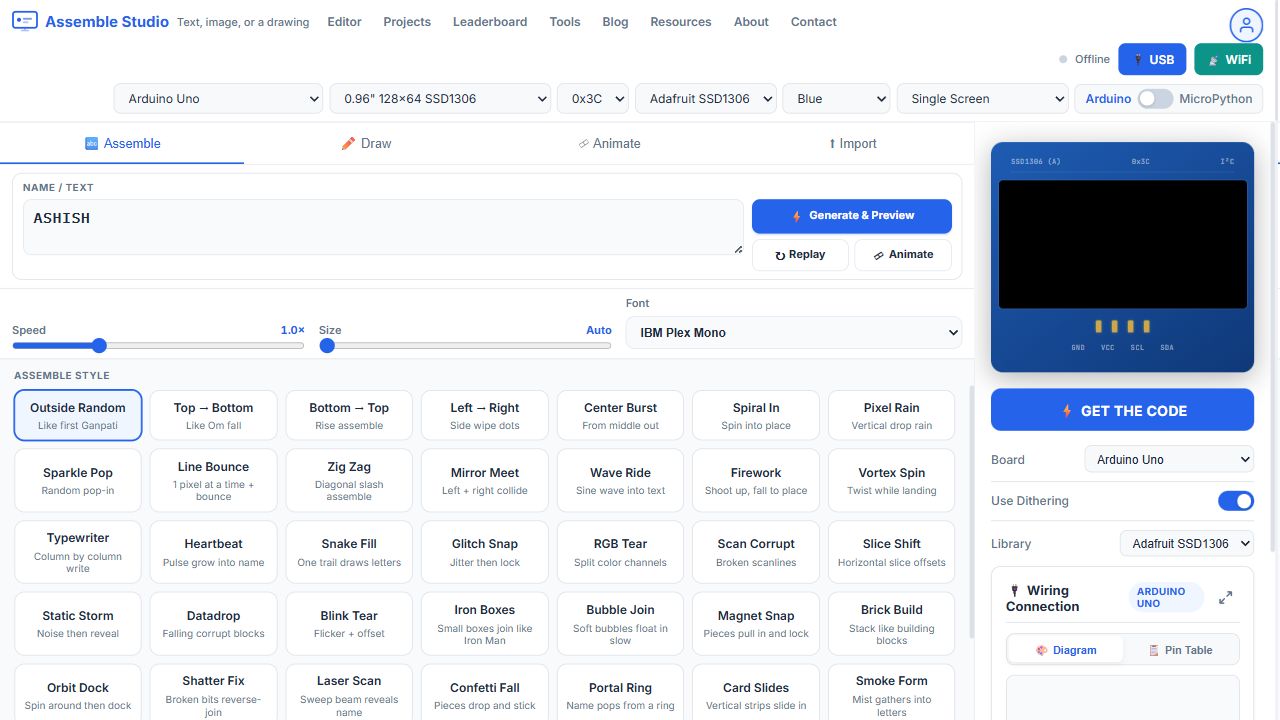
Assemble Studio when it opens: text, speed, font, and the style grid
Assemble Studio, also called Name Assemble, is a free Arduino OLED name and logo animation tool. You give it text, a picture, or a drawing, and it builds one animation. The pixels travel in from the edge, the top, a spiral, a glitch, or a 3D tumble, then lock into the final frame. Get the Code writes the SSD1306, SH1106, U8g2, or MicroPython playback sketch for the board you've selected.
There are 58 assemble styles. You can use them on text, on an imported image, and on a drawing, because the style moves lit pixels, not letters. The same Outside Random pass that builds your name will build your logo. If you've used OLED Animation Maker, the editor underneath will feel familiar. Draw, a timeline, and Import sit next to the Assemble tab.
What you can assemble
Text
The Assemble tab starts with a text box. One line is a name badge. Add a second line and you've got a greeting under it. You can pick IBM Plex Mono, Space Grotesk, Arial, Courier, Georgia, Impact, Verdana, Times, Comic Sans, or Trebuchet as your font. Size is automatic, or you set it in pixels. Speed runs from a slow build to a fast one. Generate & Preview plays it on your board. Replay runs the same frames again. Animate opens the timeline if you'd like to trim the result before export.
Image and video
Import takes PNG, JPG, BMP, GIF, MP4, WebM, MOV, and M4V files. Once your file is 1-bit, a style window asks how you want those lit pixels to travel in. Every lit pixel is used. Nothing is thinned to save frames. A logo, a mark, or a small photo all use that path. You can also keep your picture static, with no assemble motion.
Drawing
Draw is for anything that isn't text and isn't a file. Pencil, eraser, fill, line, rectangle, filled rectangle, circle, and text make the shape. You can also drop a still icon from the icon search. When you generate, the lit pixels of your drawing are the ones that assemble. Use it for a custom icon, a simple mascot, or a boot mark you don't have as a PNG.
How to assemble text
- Choose your board and display in the header. A 128×32 panel only has room for a short line, so you'll want to pick the size before you type.
- Stay on the Assemble tab. Your text box holds up to 48 characters and two lines. One line is a name badge. A second line sits under it.
- Set Speed from 0.4× to 2.5×. 1.0× is where you start. Slower is easier to read on a first boot screen, and you'll thank yourself later.
- Set Size. 0 is Auto, which fits your words to the display. You can force a size up to 40 pixels if you don't like it.
- Pick a font: IBM Plex Mono, Space Grotesk, Arial, Courier New, Georgia, Impact, Verdana, Times New Roman, Comic Sans, or Trebuchet MS.
- Click a style in the grid, or click Generate & Preview. The OLED preview plays the pixels locking into your words.
- Replay runs the same frames again. Animate opens the timeline when you'd like to delete frames or change FPS before export.
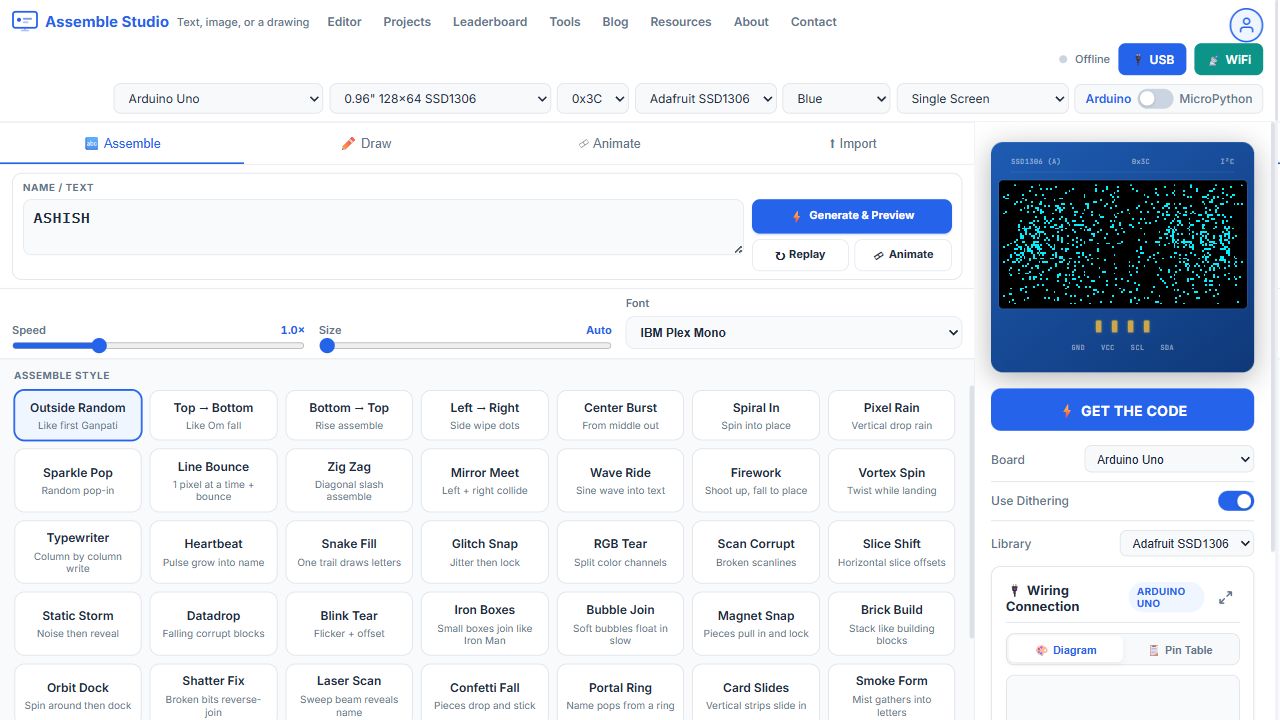
After Generate & Preview. The pixels are on their way into the name.
How to import a picture and assemble it
Open the Import tab. Drop your file, or click Browse File. You'll see the same conversion options as in OLED Animation Maker, and they matter here because only lit pixels assemble. If your threshold is bad, the style has nothing to move, and the status line tells you so.
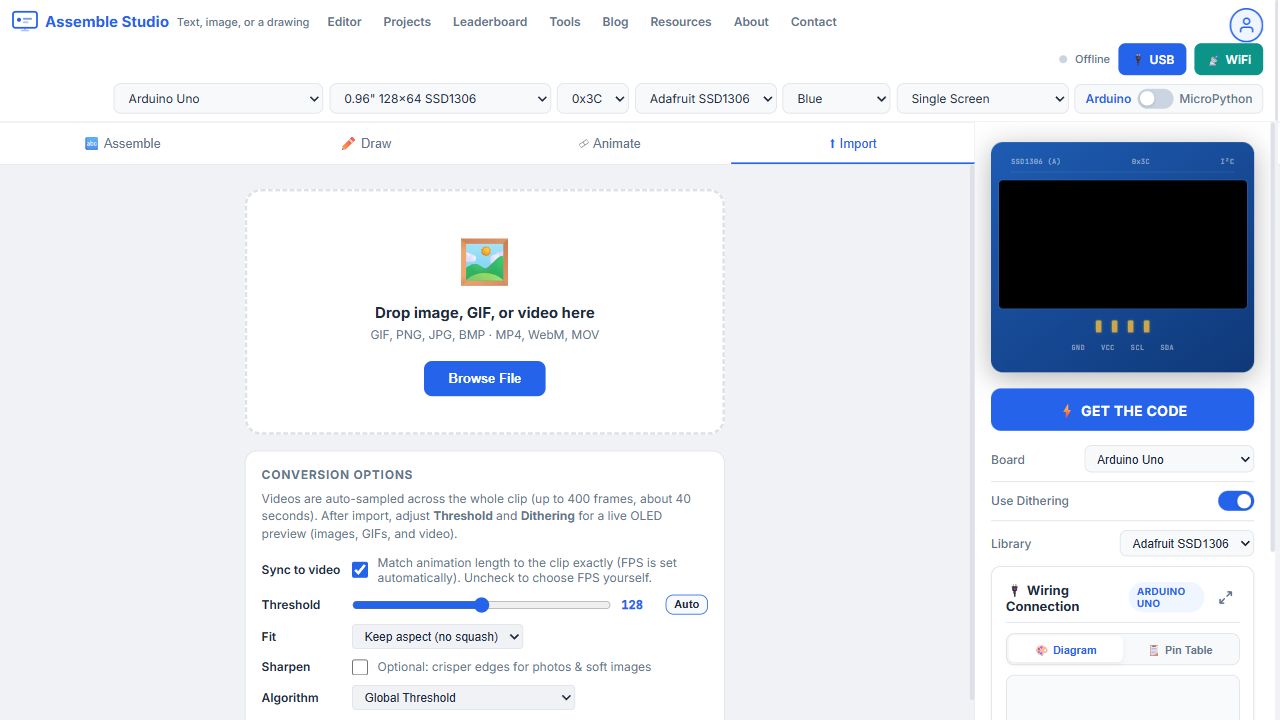
Import tab in Assemble Studio. Finish the import, then pick a style.
- Set the display size first.
- Drop a PNG, JPG, BMP, GIF, MP4, WebM, MOV, or M4V. You'll see a progress bar while the file is read.
- For a video, set Video frames from 2 to 400 (default 80). Leave Sync to video checked if you want the length to match the clip. Uncheck it and you'll set FPS yourself later.
- Move Threshold from 1 to 254 (start at 128), or click Auto. You'll watch the live preview update as you drag.
- Choose Fit: keep aspect, fill screen with a center crop, or stretch to the display.
- Sharpen is for your soft photos. Algorithm is Global Threshold, Bradley Adaptive for line art, or Sauvola Adaptive for uneven light. Bradley and Sauvola add Window Size and Sensitivity.
- Turn Dithering on for your photos and off for logos. Invert Colors if your mark came in blank. Preserve Lines thickens a thin drawing. Auto Contrast helps if your file's flat and gray.
- Use Crop / zoom to display if your subject's off to one side. Reset crop clears that.
- When the preview looks like the mark you want, finish the import and you're set. A window opens with every assemble style, plus None / Static import if the picture should stay still. Choose assemble style opens that window again. View Animation jumps to the timeline.
- Pick a style. Every lit pixel travels into the finished picture. If the status says there are no lit pixels, go back and move Threshold or turn on Invert. You haven't broken anything.
A still image settles on one finished frame after the pixels arrive. A GIF can bring more than one frame. A long video is the same size problem as in the animation maker: one 128×64 frame is 1,024 bytes, so I'd keep long clips on an ESP32 or ESP8266.
How to draw, then assemble
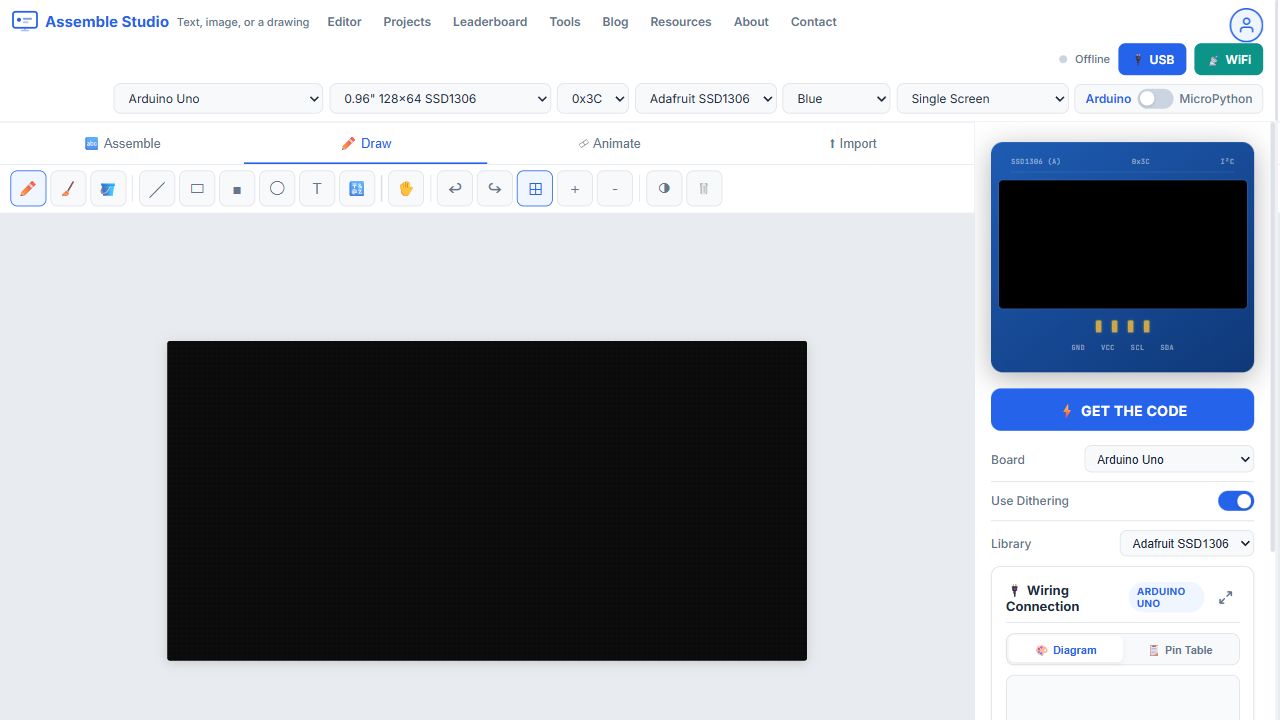
Draw tab. What you paint here is what the style assembles.
- Open Draw. Pencil and eraser edit single pixels. Fill floods an area. Line, rectangle, filled rectangle, and circle drag out shapes. Text places up to 64 characters. The icon button searches still icons and drops one you can move around.
- Undo and redo step through mistakes. Grid and zoom help you on a small panel. Invert flips the frame. Clear wipes it.
- Go back to Assemble and generate. The style uses the lit pixels of your drawing, the same way it uses the lit pixels of a PNG.
Timeline, preview, and export
Animate shows you the frames the style just built. Add inserts a frame, Dup copies one, Del removes one, and Invert All flips the whole loop. Play runs it in the preview. FPS goes from 1 to 30 and starts at 10. Save to Gallery keeps your loop in this browser. Share makes a link you can send.
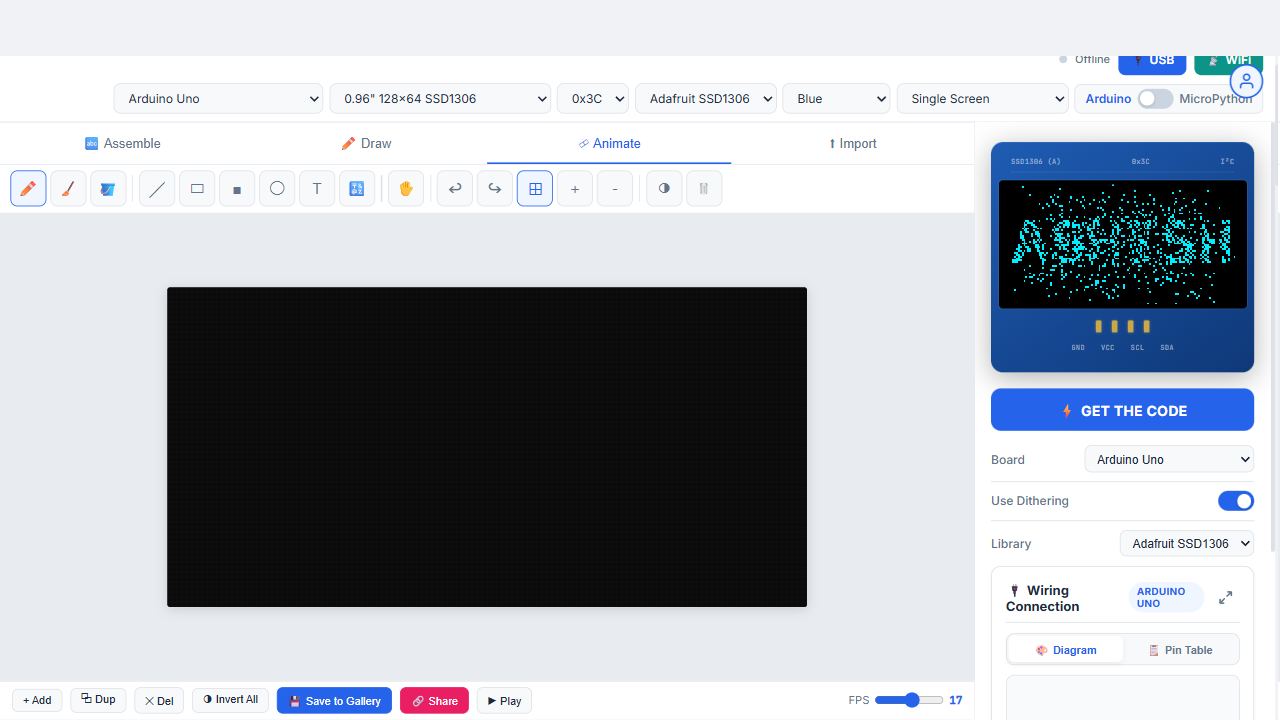
Animate tab after a generate. Add, Dup, Del, Play, and FPS are on the bottom bar.
USB preview uses WebSerial in Chrome or Edge. WiFi preview is the ESP path: copy the receiver sketch, set the WiFi name and password, upload once, read the IP on the OLED, then connect from the browser on the same network. Both are optional. Get the Code works when you've got nothing plugged in.
Get the Code opens Bitmap or Vector. Bitmap is what you'll want for an assemble animation, because the frames are pictures. Copy, Download, Download Project (.zip), and .h are the four ways out. The sketch has the display size, the I2C address (0x3C or 0x3D), the pins for your board, the frames, and the playback loop. You'll still install Adafruit SSD1306, Adafruit SH110X, or U8g2 in the Arduino IDE. The wiring card under the preview draws those pins, with a full-screen diagram and a pin table.
All 58 assemble styles
I grouped the styles here so they're easier to scan. The tool itself shows you one list. Changing the style rebuilds the preview from the same text, image, or drawing.
Travel in, 17 styles
Outside Random, Top to Bottom, Bottom to Top, Left to Right, Center Burst, Spiral In, Pixel Rain, Sparkle Pop, Line Bounce, Zig Zag, Mirror Meet, Wave Ride, Firework, Vortex Spin, Typewriter, Heartbeat, and Snake Fill. These are the everyday name and logo intros you'll reach for most. Outside Random is the scattered join. Typewriter and Snake Fill write the shape in order. Rain and Firework drop or shoot the pixels in.
Glitch, 7 styles
Glitch Snap, RGB Tear, Scan Corrupt, Slice Shift, Static Storm, Datadrop, and Blink Tear. Your picture looks wrong for a moment, then it locks. Use one when you want your project to look broken on purpose before the name appears.
Build and join, 13 styles
Iron Boxes, Bubble Join, Magnet Snap, Brick Build, Orbit Dock, Shatter Fix, Laser Scan, Confetti Fall, Portal Ring, Card Slides, Smoke Form, Zoom Crash, and Rain Join. Boxes, bricks, bubbles, and strips become the final pixels. Shatter Fix runs that idea backward: broken pieces pull together.
Energy, 7 styles
Lightning Flash, Fountain Up, Ink Drip, Elastic Snap, Meteor Slam, Voltage Arc, and Tsunami Wipe. These are the loud ones. Lightning and Voltage suit a short boot, if you ask me. Ink Drip and Tsunami are slower.
3D, 9 styles
3D Flip, 3D Fly In, 3D Fly Out, 3D Tilt, 3D Spin, 3D Door, 3D Extrude, 3D Roll, and 3D Cube. Your flat OLED fakes depth. Fly Out is the one that leaves the screen empty at the end, so use it as an exit. Don't pick it for a badge you want to stay visible.
Soft finish, 5 styles
Balloon Rise, Neon Flicker, Sand Fill, Boomerang, and Type Pop. Balloon and Sand are calm. Neon Flicker looks like a sign warming up, and you'll see why. Type Pop brings letters in one at a time, which reads clearly on a 128×32 panel where a spiral can feel crowded to you.
Boards, displays, and code
Assemble Studio uses the same 24 boards and the same 7 display sizes as the animation maker, so you won't relearn anything. Pick your board first. The I2C pins in the exported sketch follow that choice. Arduino Uno, Nano, Mega, and Pro Mini use the usual A4/A5 or Mega 20/21 pins. ESP8266, Wemos, WitPro, ESP32, ESP32-C3, S2, S3, C6, TTGO, and the Seeed XIAO ESP boards can also preview over WiFi. Raspberry Pi Pico and Seeed XIAO RP2040 export MicroPython. STM32 Blue Pill exports U8g2. Teensy 4.x exports Adafruit.
| Display | Controller | Good for |
|---|---|---|
| 0.96" 128×64 | SSD1306 | Names, logos, and drawings |
| 0.91" 128×32 | SSD1306 | One short line of text |
| 0.42" 72×40 | SSD1306 / SSD1315 | A small mark or 3-4 letters |
| 0.66" 64×48 | SSD1306 | A compact icon or short name |
| 0.69" 96×16 | SSD1306 | A single thin line |
| 1.3" 128×64 | SH1106 | Same layout as 128×64, SH110X or U8g2 code |
| 1.54" 128×64 | SSD1309 | Larger 128×64 panel |
Libraries are Adafruit SSD1306, Adafruit SH110X, and U8g2 for Arduino, and framebuf for MicroPython. The sketch stores your frames in program memory and plays them in order. One 128×64 frame is 1,024 bytes. A style with about 40 frames is about 40 KB of pictures, which fits an ESP32 and often an ESP8266, and doesn't fit an Uno. On an Uno, you'll want shorter styles or a smaller display. Dual Screen is there when you need 0x3C and 0x3D together.
USB preview uses WebSerial in Chrome or Edge. WiFi preview is the ESP path: the board joins your network and your browser streams frames. Both are optional. You can export and upload with a normal USB cable and never open live preview.
A practical order of work
- Choose the board and the display size. The pixels you design should match the panel you'll be soldering.
- Type the text, import the image, or draw the mark.
- Pick a style from the 58 above and set speed. Replay until the settle frame is the picture you'd like left on the OLED.
- Open Animate if you need to drop extra frames. Then hit Get the Code and upload it.
Your name badge usually wants Typewriter, Type Pop, or Outside Random on 128×64. Your logo wants Rain, Brick Build, or Zoom Crash so the whole mark arrives together. If your drawing has a lot of empty space, pick any style. They all move only the lit pixels. Ready-made eye loops, weather icons, and the full animation gallery live in OLED Animation Maker. A GIF or video can be imported in either tool. Here it assembles. There it's a normal frame loop. The name animation guide and the logo splash guide walk through those two cases on a real SSD1306.
Questions
Does one style work for text, images, and drawings?
Yes. The style moves lit pixels. Text, an imported file, and a drawing are three ways you decide which pixels are lit.
How many styles are there?
58. Seventeen travel in, seven glitch, thirteen build and join, seven energy, nine 3D, and five soft finishes.
Can I assemble a logo from a PNG?
Yes. Import your PNG, set threshold so the mark's clean, then choose a style in the window that opens. Get the Code gives you the frames, not a single still array. Pick the static option in that window if all you want is the finished picture.
The import says there are no lit pixels. What do I change?
Your threshold is cutting the picture out, or the colors are flipped. Move Threshold, try Auto, or turn on Invert Colors until you see the mark in the live preview.
Which board should run a long style?
ESP32 or ESP8266. If you're on an Uno, keep your Uno projects on shorter styles or a smaller display so the frame arrays fit in flash.
Do I need my board connected to export?
No. You only need USB or WiFi for a live preview. Generate, then Get the Code, and it doesn't touch your hardware.
Related searches: assemble studio · name assemble · oled name assemble · arduino oled name animation · ssd1306 name animation · oled text animation arduino · oled logo animation · oled logo splash screen · oled startup logo · png to oled animation · image to oled animation · gif to oled assemble · oled drawing animation · oled name badge arduino · adafruit ssd1306 text animation · u8g2 name animation · esp32 oled name display · sh1106 name animation · micropython oled text · image2cpp animation alternative · ssd1306 scrolling text alternative
Open this tool →