OLED Animation Maker
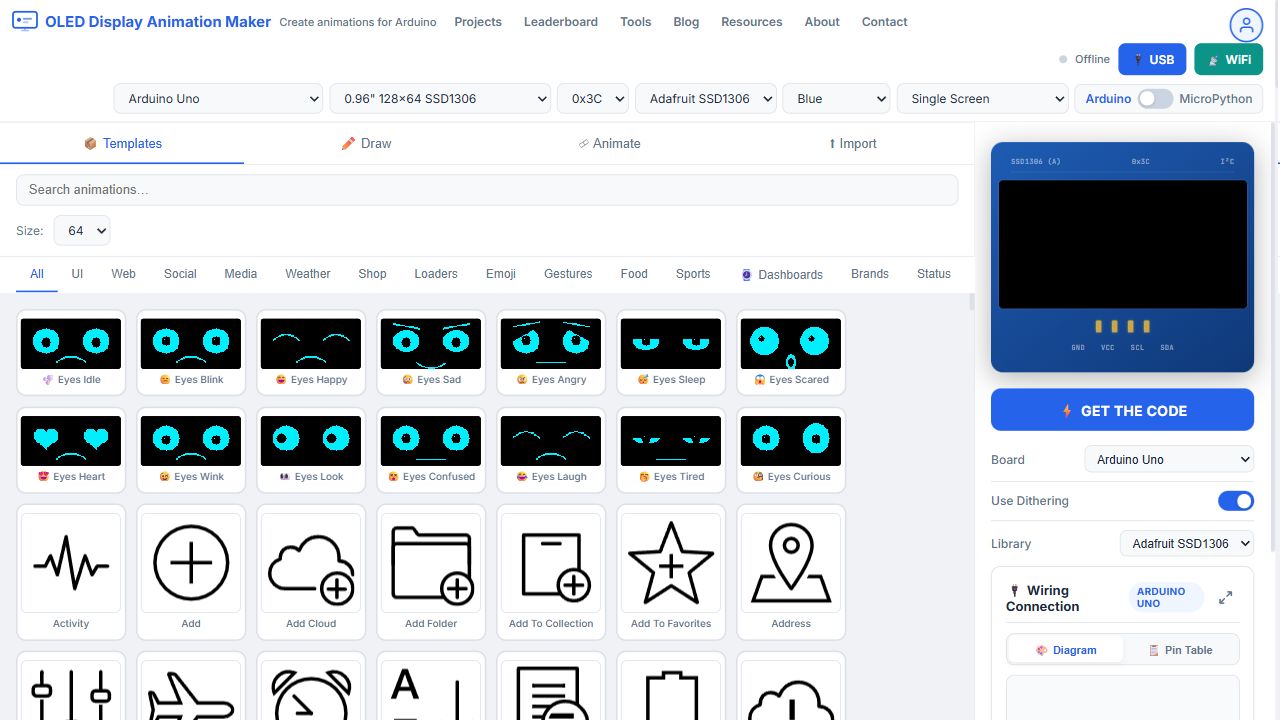
The tool when it opens: templates, board settings, and the OLED preview
OLED Animation Maker is a free Arduino OLED code generator for SSD1306, SH1106, and SSD1309 displays. You pick a board and a display, then build an animation from the gallery, draw it, or import a GIF, PNG, or MP4. The preview on the right updates before you download any code. When the frames look right, Get the Code writes an Arduino or MicroPython sketch, including a gif2cpp and image2cpp style byte array, for your board.
The gallery is two libraries in one. You get 146 built-in animations are grouped into 14 categories (200 listings, because some clips sit in more than one group). Next to those, there's an animated icon library with 485 icons in 11 categories. UI is the largest icon category, with 199 icons. Eyes is the largest built-in group, and you'll find 42 face and eye loops in it.
Boards this tool supports
Your board menu has 24 boards. Arduino boards and most ESP boards export C++ for Adafruit SSD1306, Adafruit SH110X, or U8g2. Raspberry Pi Pico and Seeed XIAO RP2040 export MicroPython. Your ESP boards can also stream a live preview over WiFi. STM32 Blue Pill exports U8g2. Teensy 4.x exports Adafruit SSD1306 or SH110X.
| Board | I2C pins (SDA, SCL) | Export |
|---|---|---|
| Arduino Uno | A4, A5 | Arduino |
| Arduino Nano | A4, A5 | Arduino |
| Arduino Mega | 20, 21 | Arduino |
| Arduino Pro Mini | A4, A5 | Arduino |
| ESP8266 (NodeMCU) | D2, D1 | Arduino, WiFi preview |
| WitPro | D2, D1 | Arduino, WiFi preview |
| Wemos D1 Mini | D2, D1 | Arduino, WiFi preview |
| ESP32 DevKit | 21, 22 | Arduino, WiFi preview |
| ESP32-C3 Mini | 8, 9 | Arduino, WiFi preview |
| ESP32-C3 DevKit | 8, 9 | Arduino, WiFi preview |
| ESP32-S2 DevKit | 8, 9 | Arduino, WiFi preview |
| ESP32-S3 DevKit | 8, 9 | Arduino, WiFi preview |
| ESP32-S3 Mini | 8, 9 | Arduino, WiFi preview |
| ESP32-C6 DevKit | 6, 7 | Arduino, WiFi preview |
| ESP32-C6 Mini | 8, 9 | Arduino, WiFi preview |
| TTGO T-Display | 21, 22 | Arduino, WiFi preview |
| Seeed XIAO ESP32-C3 | 6, 7 | Arduino, WiFi preview |
| Seeed XIAO ESP32-S3 | 5, 6 | Arduino, WiFi preview |
| Seeed XIAO ESP32-S3 Sense | 5, 6 | Arduino, WiFi preview |
| Seeed XIAO ESP32-C6 | 22, 23 | Arduino, WiFi preview |
| Seeed XIAO RP2040 | 6, 7 | MicroPython |
| Raspberry Pi Pico | 0, 1 | MicroPython |
| STM32 Blue Pill | PB7, PB6 | Arduino, U8g2 |
| Teensy 4.x | 18, 19 | Arduino, Adafruit |
Two OLEDs can share one bus. Single Screen drives one display. Dual Screen drives address 0x3C and 0x3D together, and a template can land on screen A, screen B, or both. USB preview uses WebSerial in Chrome or Edge. WiFi preview is for the ESP boards in the table above, so check that your board's on the list.
Display sizes
Every animation is generated for the size you pick. A 128×64 loop isn't the same bitmap as a 128×32 loop, so change the display before you export. I'd do it first.
| Display | Controller | Pixels |
|---|---|---|
| 0.96" 128×64 | SSD1306 | 128 × 64 |
| 0.91" 128×32 | SSD1306 | 128 × 32 |
| 0.42" 72×40 | SSD1306 / SSD1315 | 72 × 40 |
| 0.66" 64×48 | SSD1306 | 64 × 48 |
| 0.69" 96×16 | SSD1306 | 96 × 16 |
| 1.3" 128×64 | SH1106 | 128 × 64 |
| 1.54" 128×64 | SSD1309 | 128 × 64 |
SH1106 boards need the SH110X library or U8g2. The code generator switches that for you when you've selected the 1.3" display. You'll see wiring for Uno, ESP32, and ESP8266 drawn in the editor, with a pin table next to the diagram.
Built-in animation categories
These 146 clips are drawn in the editor. You don't download them. A row can share a clip with another row, so don't be surprised by the totals. Eyes and Faces both include several of the same expressions, which is why 14 groups list 200 entries and the unique count's 146.
| Category | What you will find | Clips |
|---|---|---|
| All Eyes | Mochi eyes, robot eyes, googly eyes, hypno, flicker, and dual-eye loops | 42 |
| Faces | Happy, sad, angry, love, dizzy, think, robot, and paired faces | 29 |
| Text | Scroll, bounce, blink, type, wave, glitch, matrix, and logo text | 27 |
| Fun | Pac-Man, dino, cat walk, fireworks, Pong, and celebration loops | 20 |
| Brands | Social marks and OLED Animator logo treatments | 16 |
| Motion | Ball, sine, spinner, gears, warp, orbit, lightning, and a tumbling cube | 15 |
| UI | Heart, hourglass, bell, lock, progress, and countdown | 15 |
| Status | Battery, signal, WiFi, clocks, charge, and gauges | 13 |
| Dashboards | Digital clock, watch face, system monitor, ECG, equalizer | 9 |
| Weather | Sun, rain, snow, storm, and a temperature gauge | 6 |
| Hardware | ESP32 pulse, LED blink, monitor, ECG, and temperature | 5 |
| Food | Steaming coffee | 1 |
| Transport | A car driving across the screen | 1 |
| QR | A live QR from any URL or short text | 1 |
Open a category, click a card, and the frames land on your canvas. Dashboards and status clips are the ones you'd drop onto a sensor project. Eyes and Faces suit a robot or a toy. Text clips take a string you type. QR takes a link.
Animated icon categories
The second library is animated icons. There are 485 unique icons. Some icons are filed under two headings, so the category counts below add up to 656. UI is the deep one. Gestures, Food, and Sports are smaller, so they're easier for you to scan.
| Category | Used for | Icons |
|---|---|---|
| UI | Buttons, batteries, alarms, calendars, and app chrome | 199 |
| Web | Browsers, clouds, links, and network marks | 117 |
| Loaders | Spinners and waiting loops | 67 |
| Social | Chat, share, and profile marks | 57 |
| Emoji | Expressions you can drop onto a face project | 49 |
| Shop | Cart, bag, tag, and payment marks | 49 |
| Media | Play, camera, music, and image marks | 48 |
| Weather | Sun, cloud, rain, and moon marks | 23 |
| Sports | Balls, flags, and activity marks | 22 |
| Gestures | Hands and taps | 16 |
| Food | Small food marks | 9 |
You choose the icon size in that bar: 32, 48, or 64 pixels. A 64-pixel icon fills the middle of a 128×64 screen. A 32-pixel icon leaves you room for a second icon or a line of text. Search filters the open category. There's also a separate still-icon search, backed by the Iconify catalog of open icon sets, if you need a static bitmap instead of a loop, and I use it for that.
How the editor is set up
The left side has four tabs: the animation gallery, Draw, Animate, and Import tabs. The header above them is where you choose your hardware, before you draw a single pixel.
- Board, one of the 24 boards in the table above. This sets the I2C pins in your sketch.
- Display, one of the 7 sizes. Change this before you import or draw, because every frame's built at that width and height.
- I2C address, 0x3C or 0x3D. Most modules are 0x3C, so you probably won't touch it.
- Library, Adafruit SSD1306, Adafruit SH110X, or U8g2. Pico and XIAO RP2040 ignore this and you'll get MicroPython.
- Color, Blue, White, Yellow/Blue, or Green. This only colors the on-screen preview. Your exported pixels stay 1-bit.
- Display mode, Single Screen, or Dual Screen if you've got two OLEDs.
- Language, Arduino or MicroPython, whichever you're writing. Pico boards are already on MicroPython, so you don't need to set it.
You'll find USB and WiFi in that same header. USB is WebSerial in Chrome or Edge. WiFi is for the ESP boards listed above. You don't need either one to export a sketch.
How to use a template
- Open the gallery tab. The search box filters the cards you can already see.
- Pick a category. Built-in groups and animated-icon groups are separate tabs. You'll get a 32, 48, or 64 pixel icon size while an icon category is open.
- Click a card. The frames land on your canvas, and you'll watch them play on the OLED preview.
- Drag the artwork on the canvas to move it. The size slider scales it for you. Text templates also have left, center, and right align, and a text box (up to 15 characters). The QR template has its own box for a URL or short text, up to 200 characters, and you'll see the code update live.
- In Dual Screen mode, choose Both Screens, Screen A (0x3C), or Screen B (0x3D) before you click the card, or you'll have to redo it.
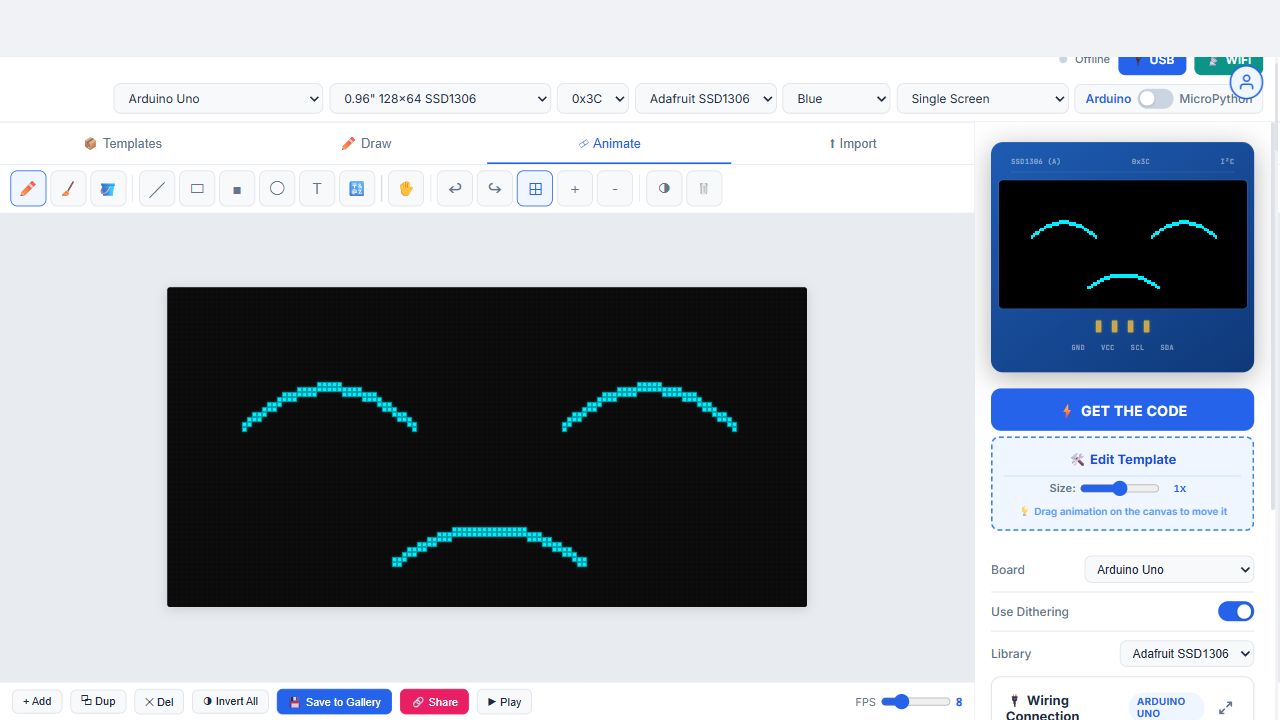
After you click a card. The timeline bar (Add, Dup, Play, FPS) sits along the bottom.
A few showcase clips are preview-only. The editor tells you on those cards, and export stays off until you pick a normal animation.
How to import an image, a GIF, or a video
Import turns your file into 1-bit OLED frames. Open the Import tab. Drop the file on the zone, or click Browse File. It accepts GIF, PNG, JPG, BMP, MP4, WebM, MOV, and M4V files.
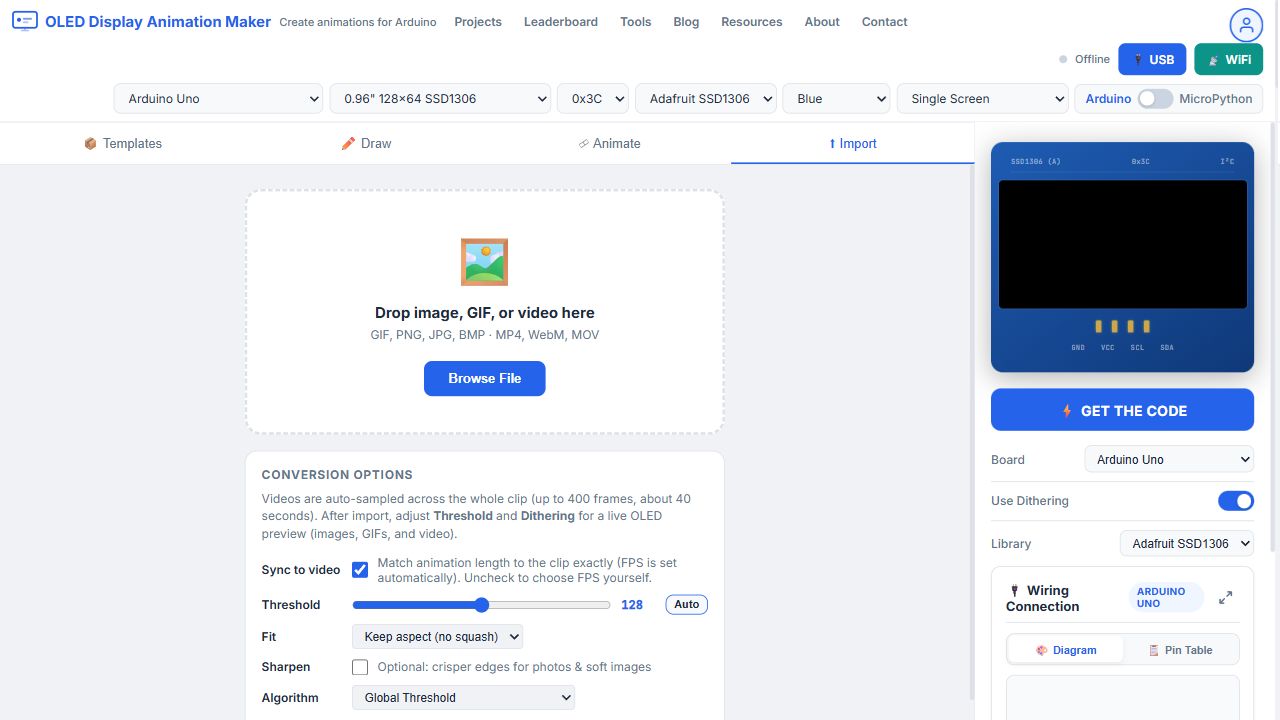
Import tab. Threshold, Fit, and Algorithm are under the drop zone.
- Set the display size first, so your import is cropped and scaled for that panel.
- Drop the file or browse to it. You'll see a progress bar while frames are read.
- For a video, set Video frames from 2 to 400. The default is 80. Frames are sampled across the whole clip, up to about 40 seconds and 400 frames.
- Leave Sync to video checked if you want the animation to last as long as the clip. FPS is then set for you. Uncheck it if you'd rather pick FPS yourself on the timeline.
- Move Threshold from 1 to 254. The start value is 128. Darker pixels below the line turn off, and lighter pixels turn on. That's all it does. Click Auto when your text or thin lines disappear.
- Choose Fit. Keep aspect leaves empty bars so your picture isn't squashed. Fill screen center-crops. Stretch forces the file to the display size.
- Turn on Sharpen for a soft photo. Leave it off if your art's already crisp.
- Choose an Algorithm. Global Threshold is one cutoff for the whole frame. Bradley Adaptive is the better choice for your line art. Sauvola Adaptive handles uneven lighting. Bradley and Sauvola also show Window Size (3 to 51, step 2, default 15) and Sensitivity (default 0.15).
- Turn on Dithering for photos. It's Floyd-Steinberg, which fakes gray with a dot pattern. Leave it off for logos and text, or you'll get speckled edges.
- Invert Colors swaps black and white on the live preview. Use it when your light logo imported as a blank screen.
- Preserve Lines thickens thin strokes in your drawings and sketches.
- Auto Contrast stretches the brightness range before the threshold is applied. It helps if you've got a flat, gray photo.
- Watch the live OLED preview. For a video, open Crop / zoom to display if your subject isn't centered, and Reset crop to start over.
- Click View Animation. The frames replace what's on your canvas. Open Animate if you'd like to delete extras or change FPS, then Get the Code.
A still PNG or JPG becomes one frame. A GIF keeps its frames, and I convert them to the display size. A video becomes the number of frames you asked for. One 128×64 frame is 1,024 bytes, so a 400-frame clip is far too large for an Arduino Uno. I'd keep long imports on ESP32 or ESP8266. This is the same job as a gif2cpp or image-to-byte-array converter, with the playback loop included. The GIF to OLED guide and the video to OLED guide show you the same path with example files.
How to draw
Draw is for the frame you can't find in the gallery. Here's the tool strip:
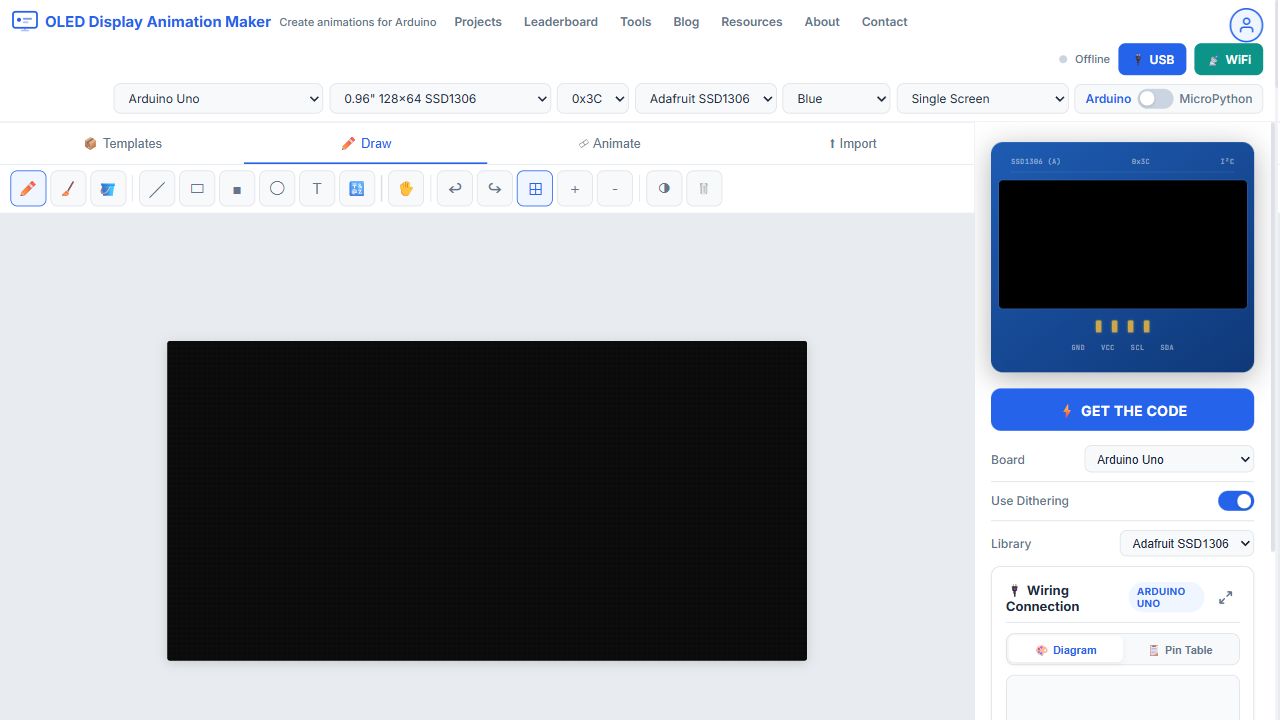
Draw tab. Pencil is the first tool. Grid, zoom, invert, and clear are on the same strip.
- Pencil and Eraser paint or clear one pixel at a time.
- Fill floods a closed area, so make sure you've closed the outline.
- Line, Rect, Filled Rect, and Circle drag out a shape.
- Text uses the text row: type up to 64 characters, pick a font, and press Place.
- Icon library searches still icons (Material, Tabler, Lucide, Bootstrap, and other open sets) and drops one onto your canvas. Sizes are 24, 32, 48, or 64 pixels. You can move the placed icon. This catalog is still pictures, not the animated icon tabs.
- Move lets you drag a line, shape, text, or drawing.
- Undo and Redo step through edits. Grid shows pixel guides. Zoom makes a small display easier for you to edit. Invert flips the current frame. Clear wipes it, so you can start over.
Shapes can export as vector code: drawLine, drawRect, and drawCircle calls. That stays small on an Uno, which you'll appreciate. Icons and imported images stay as bitmaps even in vector mode.
How the timeline works
Open the Animate tab after a template, a drawing, or an import. The bar under the canvas is your whole timeline.
Animate tab. Add, Dup, Del, Invert All, Play, and FPS are on the bar under the canvas.
- + Add inserts an empty frame for you. Dup copies the current frame. Del removes it.
- Invert All flips every frame, which is the fast fix when your import came out reversed.
- Play loops the frames in the preview. FPS runs from 1 to 30. The start value is 10. A video import with Sync to video already set this to match the clip.
- Save to Gallery keeps your loop in this browser so you can reopen it later.
- Share makes a link you can send for the animation.
Click a frame thumbnail and you'll edit that frame in Draw. The preview on the right plays the same frames you'll export, so what you see is what you get.
How to preview on a real OLED
USB
Click USB in Chrome or Edge. Pick your board's serial port. The status dot leaves Offline when the port opens, and the preview frames go straight to your display. Close other programs that already hold that port, such as the Arduino Serial Monitor.
WiFi
WiFi preview is for ESP8266, ESP32, and the other ESP boards in the table. Pico, STM32, Teensy, and the classic Arduino boards don't use it, so you can skip this part.
- Click WiFi. Copy the receiver sketch, and don't edit anything else.
- Put your WiFi name and password in WIFI_SSID and WIFI_PASS, then upload that sketch once. You won't need to do it again.
- Your board joins your router. Its IP address shows on the OLED.
- Stay on that same WiFi in your browser. Type the IP (the box starts at 192.168.1.100) and click Connect WiFi.
After that upload, you can take the cable off. Your browser sends frames to the board over your home network. The WiFi preview guide has the same steps with the wiring next to them, if you'd like to follow along.
How to export the sketch
Click Get the Code. You'll see two styles and four ways to take the file.
- Bitmap writes every frame as a byte array in program memory, plus a loop that plays them. It's the right choice for templates, icons, GIFs, and video clips.
- Vector writes drawLine, drawRect, and drawCircle for the shapes and text you drew. Imported pictures and icons stay as bitmaps inside that sketch.
- Copy puts the sketch on your clipboard. Download saves the .ino or .py file for you. Download Project (.zip) packs the sketch for the Arduino IDE. .h saves only the bitmap header, for when you want to paste frames into a sketch you've already got.
The sketch includes the display size, the I2C address, the pin pair for the board you picked, the frame data, and the playback loop. Paste it into the Arduino IDE or a MicroPython editor and upload it. The browser doesn't install a driver or a library for you. You'll still add Adafruit SSD1306, Adafruit SH110X, or U8g2 in the IDE if you don't have that library yet. A wiring card under the preview draws the pins for the selected board, with a diagram and a pin table, and a full-screen view of the same drawing. The SSD1306 wiring tutorial matches that card for Uno, ESP32, and ESP8266 boards.
Twelve 128×64 frames are about 12 KB of pictures. A long GIF or a 400-frame video belongs on an ESP32 or ESP8266. If you want your letters, logo, or drawing to fly together instead of playing a ready-made loop, that's Assemble Studio.
Questions
How many animations are in the tool?
146 unique built-in animations, plus 485 unique animated icons. The category tables above show you the full split.
Which category should I open first?
Eyes, if your project is a face. Dashboards or Status, if it's a meter. Loaders, if you only need a wait animation. UI, if you want the widest icon set.
How do I import a GIF or MP4?
Open Import, drop the file, set threshold and fit, then View Animation. For MP4, WebM, or MOV, also set Video frames (2-400) and leave Sync to video on if you want the loop to match the clip length.
Why did my logo import as a blank screen?
Your threshold is cutting out the mark, or the colors are inverted. Move Threshold, try Auto, or turn on Invert Colors, and watch the live preview before you click View Animation.
Will an Uno play every category?
It'll play short loops. A long frame list, or a sampled video, can exceed your Uno's flash. ESP32 and ESP8266 are the boards for those.
Can I use two screens?
Yes. Dual Screen uses 0x3C and 0x3D. You can assign a template to one screen or to both.
Do I have to connect my board to export code?
No. USB and WiFi only push a live preview. Get the Code works when you've unplugged the board.
Related searches: oled animation maker · oled display animation · arduino oled animation · arduino oled code generator · ssd1306 animation maker · sh1106 animation · ssd1309 oled · 128x64 oled animation · 0.96 oled animation arduino · gif to oled · gif2cpp · gif2cpp alternative · gif to cpp · video to oled converter · mp4 to oled · mp4 to ssd1306 · image to byte array arduino · image2cpp alternative · png to c array · oled pixel editor · oled bitmap generator · drawbitmap ssd1306 · progmem oled animation · adafruit ssd1306 · u8g2 animation · micropython oled · esp32 oled animation · esp8266 oled · nodemcu oled · arduino nano oled · webserial oled · wifi oled preview · dual oled display · 0x3c 0x3d · robot eyes oled · oled icons arduino
Open this tool →