Lithophane print settings for Bambu Lab, Prusa and Ender 3
A lithophane is the one print where your slicer settings show up as part of the picture. Every visible line, gap or blob ends up glowing when the light is on. The good news: the settings that work are almost the same on every printer, and once they are dialled in you rarely touch them again. This guide gives you the numbers, the exact places to set them in Bambu Studio, PrusaSlicer and Cura, and what to change when a print comes out wrong.
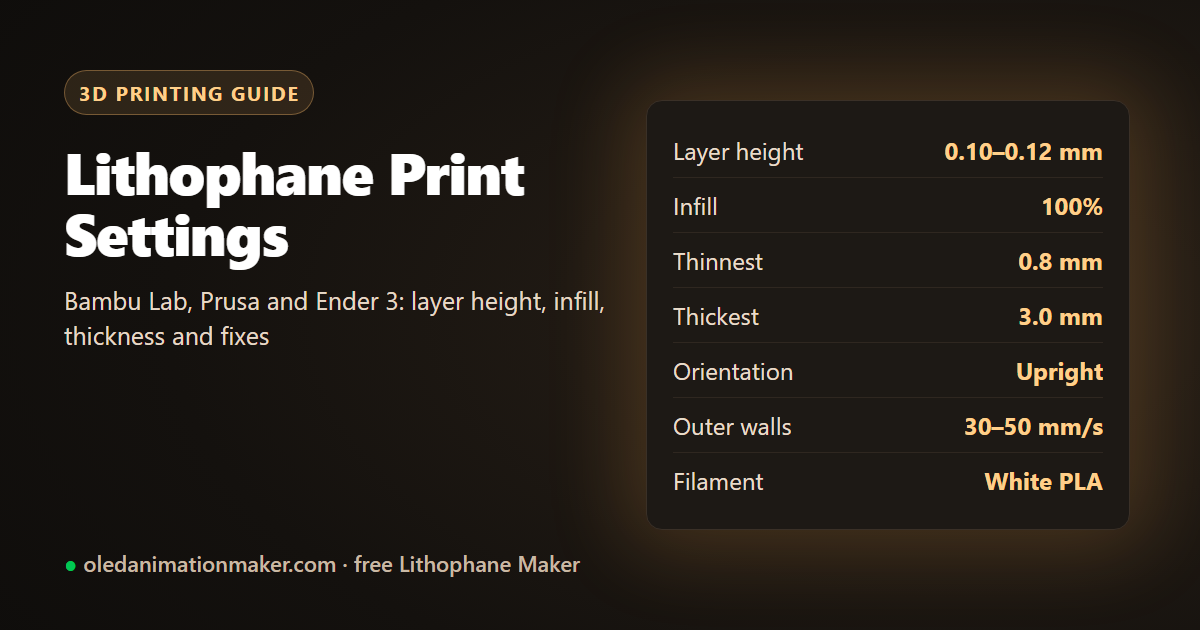
Short version. White PLA, 0.10 to 0.12 mm layers, 100% infill, at least 3 walls, printed standing upright with a 5 to 8 mm brim, outer walls at 30 to 50 mm/s. Model thickness 0.8 mm at the brightest point and 3 mm at the darkest. Everything below explains why, and what to do when that is not enough.
Start with the model, not the slicer
Most "bad settings" are really bad geometry. Two numbers in the STL decide how your lithophane can look before the slicer ever sees it:
- Thinnest part (brightest areas): 0.8 mm. That is two passes of a 0.4 mm nozzle, thin enough to glow and thick enough to print without holes. Go to 0.6 mm only with a strong backlight.
- Thickest part (darkest areas): 3 mm. Enough contrast for a normal warm LED. Raise it to 3.5 mm if prints look washed out. Above 4 mm, PLA lets very little light through, so extra thickness just adds print time.
- Detail: about 0.3 mm per photo pixel for a 0.4 mm nozzle. A finer mesh makes a bigger file without detail your nozzle can draw.
The free Lithophane Maker starts at exactly these values (0.8 mm, 3 mm, 0.30 mm/px, a 3.5 mm frame), so if you generate the STL there you can go straight to the slicer.
The settings that work on every printer
| Setting | Value | Why |
|---|---|---|
| Filament | White PLA (matte or basic) | Even light through the plastic. Silk, glitter and dark colours hide detail. |
| Layer height | 0.10 to 0.12 mm | Smaller steps between grey levels on curved and lamp shapes, and finer edges on upright panels. |
| Infill | 100% | Any sparse pattern shows as a grid when lit. |
| Walls / perimeters | 3 or more | With 100% infill it matters less, but more walls give smoother tone in thin areas. |
| Orientation | Standing upright | The thickness is then drawn by the nozzle path in X and Y, the printer's most precise axes. |
| Brim | 5 to 8 mm | A tall, thin panel needs help to stay put. |
| Outer wall speed | 30 to 50 mm/s | Slow outer walls give smoother greys and less ringing. |
| Supports | None | An upright lithophane has no overhangs. |
| Seam | Aligned or rear, on the frame | Keeps the seam zits off the picture. |
Bambu Lab: Bambu Studio and OrcaSlicer
These steps work on the X1, P1 and A1 series. OrcaSlicer uses the same names.
- Import the STL. If it came from the Lithophane Maker it is already standing up. Do not lay it flat.
- Pick the 0.12 mm Fine process profile for your printer.
- In the Strength tab, set Sparse infill density to 100% and Wall loops to 3 or more.
- In the Others tab, set Brim type to outer brim and brim width to 5 to 8 mm.
- In the Quality tab, set Seam position to Aligned or Back so it sits on the frame edge.
- Optional: in the Speed tab, drop Outer wall to about 50 mm/s. The default is much faster and is fine for most prints, but slowing it removes faint ripples.
Bambu Basic PLA in white prints clean lithophanes with these settings. The A1 and A1 mini move the bed, so on tall panels keep the brim and consider slowing the outer walls further.
Prusa: PrusaSlicer
- Choose the 0.10 mm DETAIL print profile, or the finest profile your printer offers.
- Switch to Expert mode. Under Infill, set Fill density to 100%.
- Under Layers and perimeters, set Perimeters to 3 and Seam position to Rear or Aligned.
- Under Skirt and brim, set the brim width to 5 to 8 mm.
Creality Ender 3 and others: Cura
- Start from the Super Quality or 0.12 mm profile.
- Set Infill Density to 100% and Wall Line Count to 3 or more.
- Set Build Plate Adhesion Type to Brim, 5 to 8 mm.
- Set Z Seam Alignment to User Specified at the back, or Sharpest Corner, so the seam lands on the frame.
- Set Outer Wall Speed to 30 to 40 mm/s. Bed slinger printers like the Ender 3 benefit most from going slow on tall prints.
Before a long lithophane on an Ender 3, check that the belts are tight and the eccentric nuts have no play. Loose belts show up as vertical stripes across the whole picture.
Flat or upright: why it matters
You can print a flat lithophane lying down, and it is faster. The catch: the thickness is then built from stacked layers, so every grey level is a multiple of your layer height. At 0.12 mm layers, a 0.8 to 3 mm panel only has about 18 possible shades, and the steps between them show as contour lines on soft gradients like skin and sky.
Standing upright, the nozzle draws the thickness in X and Y. The steps are now as fine as your printer's positioning, and the gradients look smooth. That is why the Lithophane Maker exports flat panels standing up by default. Curved and cylinder lamp shapes always print upright, so for those, a finer layer height is what smooths the curve.
Which filament works best?
Plain white PLA is the standard for a reason. It diffuses the light evenly and is easy to print fine. A few notes on the alternatives:
- Natural or translucent PLA lets too much light through, so contrast drops. Raise the thickest part to 4 mm if you use it.
- Silk PLA has a shiny, streaky surface that adds bands to the picture. Avoid it.
- PETG works and handles warmth a bit better, but strings more. Print it slower and dry it first.
- Coloured PLA tints the light and absorbs more of it. Pale colours like light yellow or light blue can look nice for a night light; dark colours do not work.
Fixing common lithophane print problems
| Problem | Likely cause | Fix |
|---|---|---|
| Grid pattern when lit | Infill below 100% | Set infill to 100%. |
| Tiny holes in bright areas | Thinnest part too thin | Raise the thinnest part to 0.8 mm, or use a 0.4 mm nozzle rather than a worn one. |
| Horizontal lines across the picture | Inconsistent layers (Z wobble, under-extrusion) | Dry the filament, lower speed, check the Z rod and bed level. |
| Vertical stripes | Ringing or loose belts | Slow outer walls to 30 to 40 mm/s, tighten belts. |
| Blobs or a line of zits | Seam on the picture | Set the seam to Aligned or Rear so it sits on the frame. |
| Print falls over or wobbles near the top | Tall thin panel, fast bed movement | Add a 5 to 8 mm brim, slow down, keep panels under about 150 mm tall on bed slingers. |
| Picture looks flat and grey | Thickness range too small, or a flat photo | Raise the thickest part to 3.5 mm and add a little contrast in the generator. |
| Gaps between lines in thin areas | Variable-width wall generator | Try the Classic wall generator in Bambu Studio, OrcaSlicer or PrusaSlicer. |
How long does a lithophane take to print?
With these settings, a 100 × 80 mm flat panel usually takes 3 to 6 hours depending on the printer, and a 70 mm cylinder lamp can take 8 hours or more. The fine layers and 100% infill are what take the time, and they are also what make the picture work, so it is not the place to save time. The Lithophane Maker shows the PLA weight before you download, which is a good check that you have enough filament on the spool.
Do a quick test print first
For a new printer or filament, print a small 50 mm panel first. It takes well under an hour and shows banding, holes and seam problems just as clearly as a big print. Hold it up to your phone torch: if the face or the sky looks smooth, your settings are ready for the full size.
Ready? Make the STL in the free Lithophane Maker, then read how to make a lithophane from a photo for picking and editing the picture, or how to make a lithophane lamp if you want a glowing cylinder.
Frequently asked questions
What is the best layer height for a lithophane?
0.10 to 0.12 mm. Finer layers make smoother gradients on curved and lamp lithophanes and sharper edges on upright panels. 0.2 mm works for a quick test but shows visible steps.
Should a lithophane have 100% infill?
Yes. Any sparse infill pattern shows up as a grid when light shines through. Use 100% infill and at least 3 walls.
Should I print a lithophane flat or standing up?
Standing up. The thickness is then drawn by the nozzle in X and Y, which gives smooth grey levels. Printed flat, every shade is a stack of layers and you see contour lines.
What thickness should a lithophane be?
Around 0.8 mm at the brightest areas and 3 mm at the darkest. Go up to 3.5 mm for more contrast, and do not go below 0.6 mm or the thin areas get holes.
What are the best Bambu Lab lithophane settings?
In Bambu Studio use the 0.12 mm Fine profile, set sparse infill to 100% and wall loops to 3 or more, add a 5 to 8 mm brim from the Others tab, and set the seam to Aligned or Back. Print in white PLA.
Can I print a lithophane in PETG?
Yes. PETG works and tolerates heat a little better, but it strings more. Dry it, print slower and use white or natural PETG.
Related guides
- Lithophane frame and light box: how to display it
- How to make a lithophane from a photo
- How to make a lithophane lamp with an LED
- Shadow lamp vs lithophane: which to print
- How to make a shadow lamp from any picture
Free tools: Lithophane Maker for flat, curved, heart, round and cylinder lamp lithophanes, the Shadow Box Lamp Generator for wall shadow lamps, Text to STL for names and keychains, and 3MF to Web to show your prints on a website. See all tools.