Arduino Buzzer Song Generator: make buzzer songs and get the code
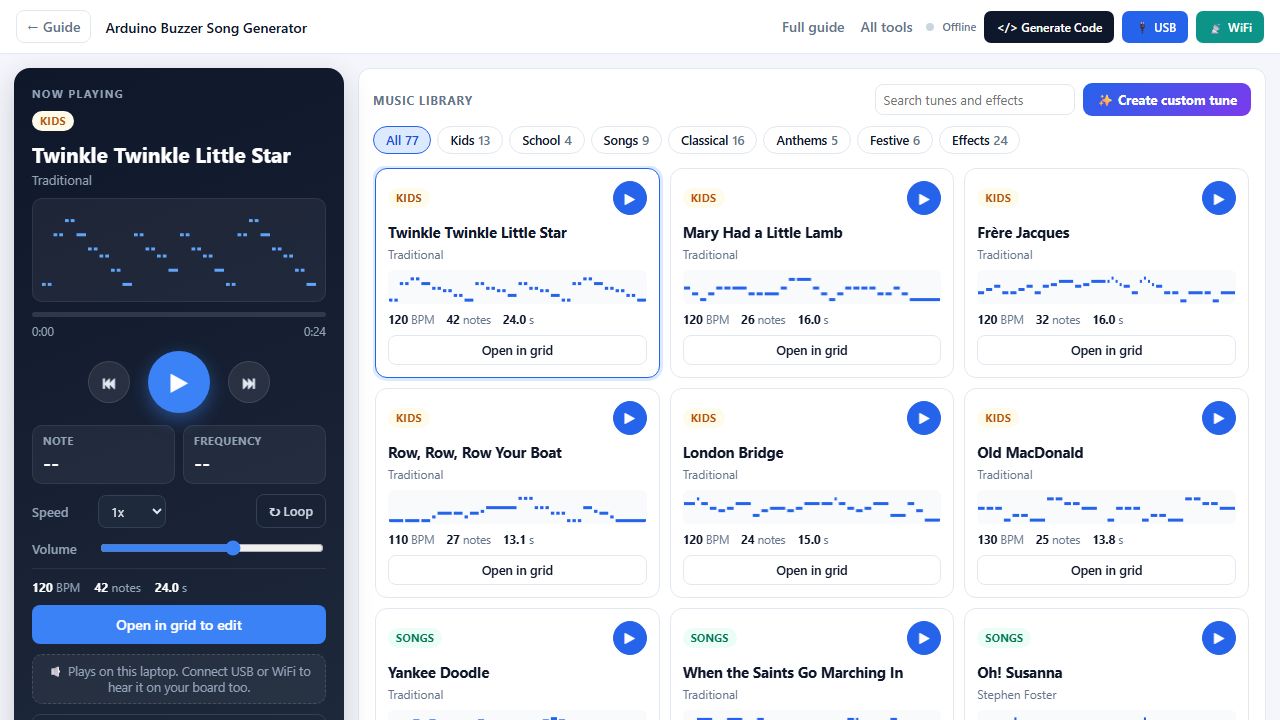
The player on the left, the music library on the right. Click any card to hear it.
The Arduino Buzzer Song Generator is a free tool for anyone who wants a piezo buzzer to play real music. You pick a song from the library, draw your own tune on a note grid, type it in sargam, or let the tool listen to an MP3 or your humming. You hear it straight away in the browser, and when it sounds right you copy a ready Arduino sketch. If your board is plugged in over USB, or an ESP board is on your WiFi, every song you play also plays on the real buzzer.
Most Arduino buzzer song code online is a long list of numbers that you copy and hope for the best. Changing one note means finding its frequency, counting milliseconds and uploading again. This tool removes that loop. Below you will find what every feature does, how to wire the buzzer, which boards work, what the generated code looks like and how to fix common problems.
Open the Arduino Buzzer Song Generator →Quick start: your first buzzer song in two minutes
- Wire a passive buzzer. The + leg goes to pin 8 of an Arduino Uno, the other leg to GND.
- Open the tool and click a song. Twinkle Twinkle Little Star is loaded first. Click any card to hear it.
- Press Generate Code. Keep Arduino Uno / Nano / Pro Mini and Pin 8, and leave When the board turns on selected.
- Copy and upload. Paste the sketch into the Arduino IDE, choose your board and port, and press Upload. The song plays as soon as the board restarts.
That is all you need for a first song. The sections below explain every other option.
Music library: 53 buzzer songs and 24 sound effects
The Music library sits on the right of the tool. Each card shows the category, the song name, the composer or origin, a small picture of the melody's shape, the speed in BPM, the number of notes and the length in seconds. Click a card, or its round play button, to hear it in the player on the left. Click it again to stop.
| Tab | What is inside |
|---|---|
| Kids | 13 nursery rhymes: Twinkle Twinkle Little Star, Mary Had a Little Lamb, Frère Jacques, Row Row Row Your Boat, London Bridge, Old MacDonald, Hot Cross Buns, The Wheels on the Bus, Itsy Bitsy Spider, Rain Rain Go Away, If You're Happy and You Know It, Skip to My Lou, This Old Man |
| School | Assembly and campfire songs: Kumbaya, Michael Row the Boat Ashore, She'll Be Coming Round the Mountain, Oh My Darling Clementine |
| Songs | Folk and traditional songs such as When the Saints Go Marching In, Greensleeves, Amazing Grace, La Cucaracha, Korobeiniki, Scarborough Fair and Londonderry Air |
| Classical | Ode to Joy, Für Elise, Canon in D, Minuet in G, In the Hall of the Mountain King, Morning Mood, Brahms' Lullaby, Can-Can, The Entertainer, Eine kleine Nachtmusik, Turkish March, Spring, The Blue Danube, Habanera, Bridal Chorus and the classic Gran Vals ringtone |
| Anthems | Jana Gana Mana (India), The Star-Spangled Banner (USA), God Save the King (UK), La Marseillaise (France), Das Lied der Deutschen (Germany) |
| Festive | Happy Birthday, Jingle Bells, We Wish You a Merry Christmas, Silent Night, Deck the Halls, Auld Lang Syne |
| Effects | 24 sounds: power up and down, laser, siren, police, ambulance, alarm, notify, error buzz, coin, jump, level complete, game over, bomb drop, zap, charging, phone ring, heartbeat, button click, robot talk, spaceship, UFO and glitch |
Use the search box to find a song by name or composer, and the tabs to filter. Every song in the library is traditional, public domain or a national anthem, arranged by hand for one buzzer, so you can use it in projects, videos and lessons without copyright worries. Two buttons sit under each card: Open in grid loads a song into the editor, and on effect cards + Add to my sound effects adds the sound to your sketch.
Now playing: the player on the left
The dark panel on the left plays whatever you choose in the library. It stays in view while you scroll the song cards, and on a phone it sits on top.
- Play, previous and next. The big button plays and stops. The arrows move to the previous or next card in the current tab and play it.
- Shape and progress. The picture of the melody has a yellow line that moves as the song plays, with the time so far and the total time below.
- Note and frequency. Two boxes show the note being played, such as E5, and its frequency in hertz, such as 659. This is handy for learning which frequency matches which note.
- Speed, loop and volume. Speed runs from 0.5x to 2x. Loop repeats the song until you stop it. Volume only changes the browser sound, not the board.
- Where it plays. A small badge shows Plays on this laptop, or Laptop + your board once USB or WiFi is connected.
- Open in grid to edit loads the song into the note grid, and Get Arduino code opens Generate Code for it.
Create a custom tune on the note grid
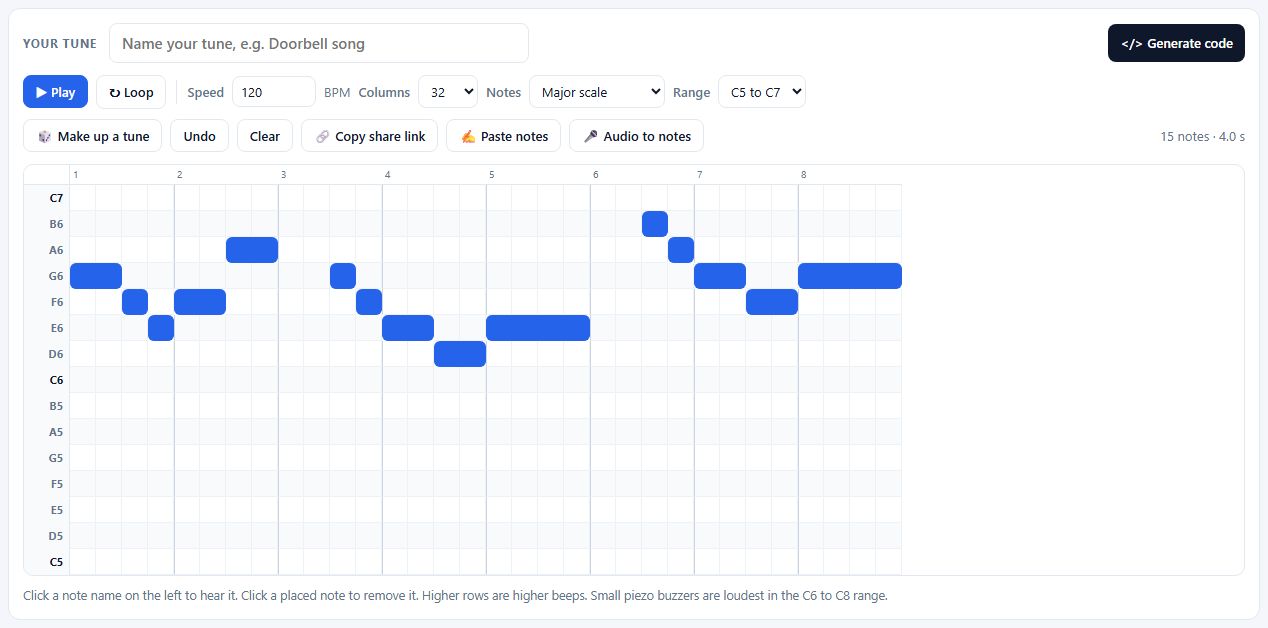
Rows are notes, columns are time. Each blue bar is one note.
Press Create custom tune in the library to get an empty grid with a name box ready, or open any song in the grid to change it. Rows are notes, from low at the bottom to high at the top. Columns are moments in time, read from left to right. Because a buzzer plays one note at a time, each column holds one note.
- Add a note: click a square. Hold it longer: drag to the right along the same row. Remove it: click any part of the note. Hear a row: click the note name on the left.
- Name your tune. The name appears in the code header and in the downloaded file name, for example
doorbell_song.ino. - Speed (BPM). One column is a sixteenth note, so four columns make one beat. 120 BPM is a normal walking pace.
- Columns. From 16 up to 768, enough for a full song of more than a minute.
- Notes. Easy (pentatonic) has 5 notes per octave and almost any pattern sounds nice. Major sounds bright and happy, Minor sounds sad or mysterious, and All 12 notes lets you copy any tune exactly.
- Range. C4 to C6, C5 to C7 or C6 to C8. Higher ranges are louder on a small buzzer.
- Make up a tune writes a short random melody that moves in small steps and ends on a resting note, a good starting point when you have no idea.
- Undo, Clear and Copy share link. The share link stores the whole tune in the address, so anyone who opens it sees the same grid.
Paste notes: type a tune in sargam or letter notes
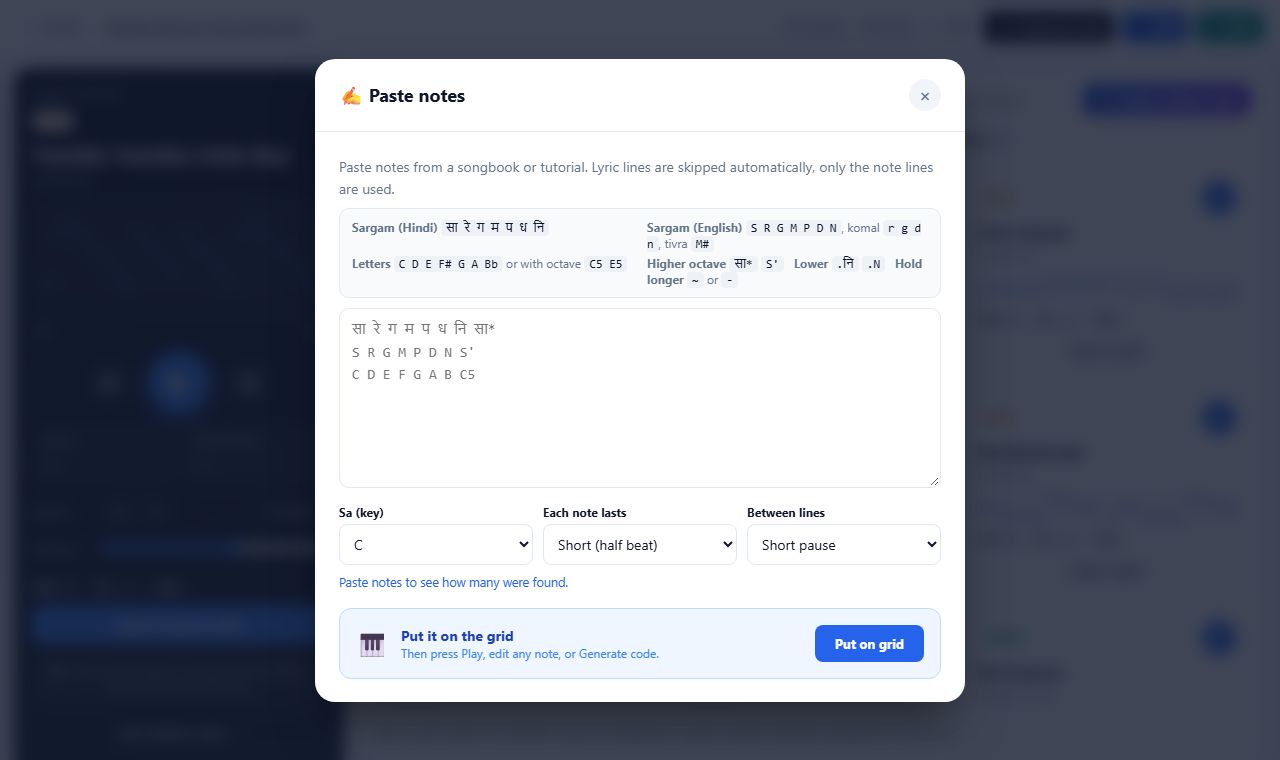
Many songbooks, harmonium tutorials and school music books write melodies as sargam. Paste notes, next to the share link button, turns that text straight into a tune.
| Format | Example | Extra marks |
|---|---|---|
| Hindi sargam | सा रे ग म प ध नि | सा* higher octave, .नि lower octave |
| English sargam | S R G M P D N | Komal r g d n, tivra M#, S' higher, .N lower |
| Letter notes | C D E F# G A Bb | Add an octave number for exact pitch, such as C5 E5 |
| Hold a note | ~ or - | Each mark adds one more step to the note before it |
You can paste a whole page, lyrics included. A line is used only when it contains nothing but notes, so lyric lines and other text are skipped automatically. The window tells you how many notes and lines it found. Choose Sa (key) to set the starting pitch, Each note lasts for the speed, and whether to leave a short pause between lines. Sargam has no rhythm marks, so every note gets the same length. You can make any note longer afterwards by dragging it on the grid.
Audio to notes: turn an MP3 or your humming into buzzer code
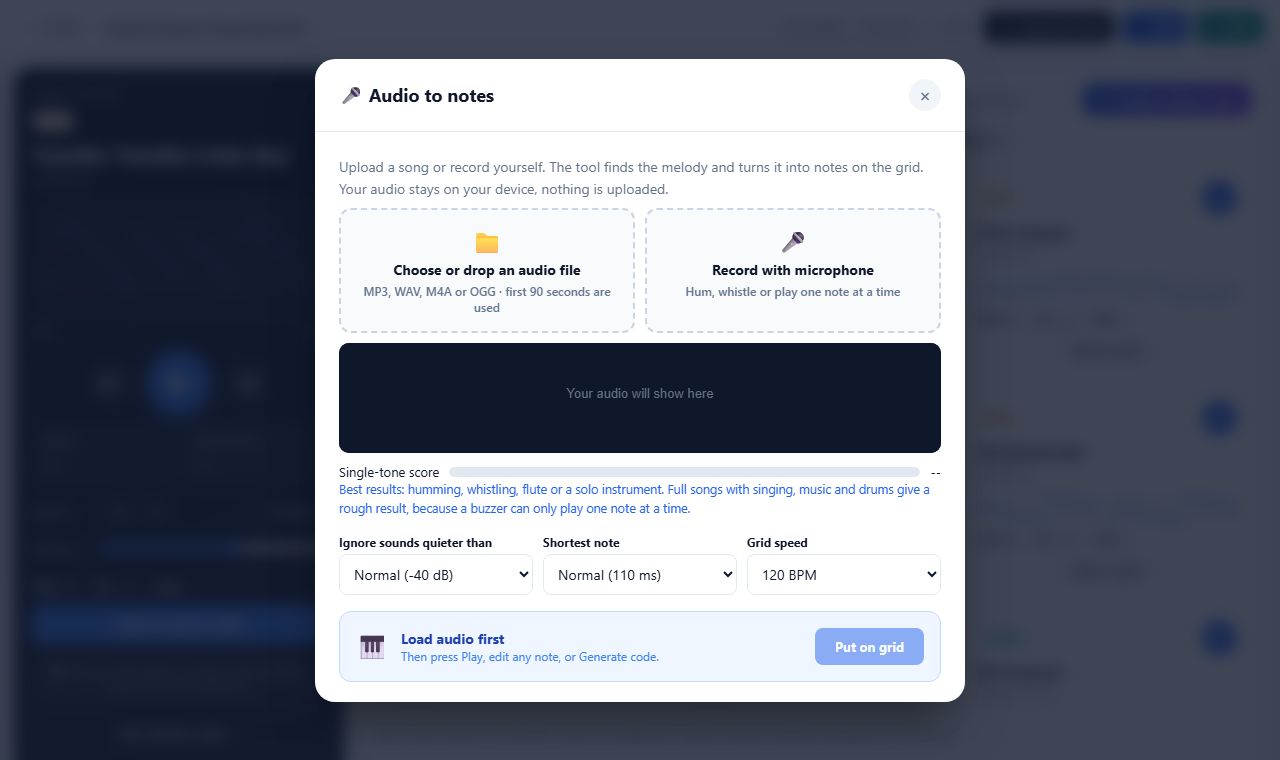
Audio to notes works as an MP3 to Arduino converter. Drop in an MP3, WAV, M4A or OGG file, or press Record with microphone and hum, whistle or play an instrument for up to 90 seconds. The tool measures the main pitch about every 23 milliseconds, rounds it to the nearest note, joins repeated readings into notes and shows them over the waveform.
- Single-tone score. Green (75% or more) means a clean melody that will sound close to the original. Orange means mostly fine. Red means many sounds at once, such as singing with drums, and the result will be rough.
- Ignore sounds quieter than removes background noise. Shortest note folds tiny blips into the note next to them. Grid speed sets how finely the timing is placed on the grid.
- Private. The audio is analysed inside your browser. It is never uploaded, not even to this website.
Sound effects: coin, laser, siren and more
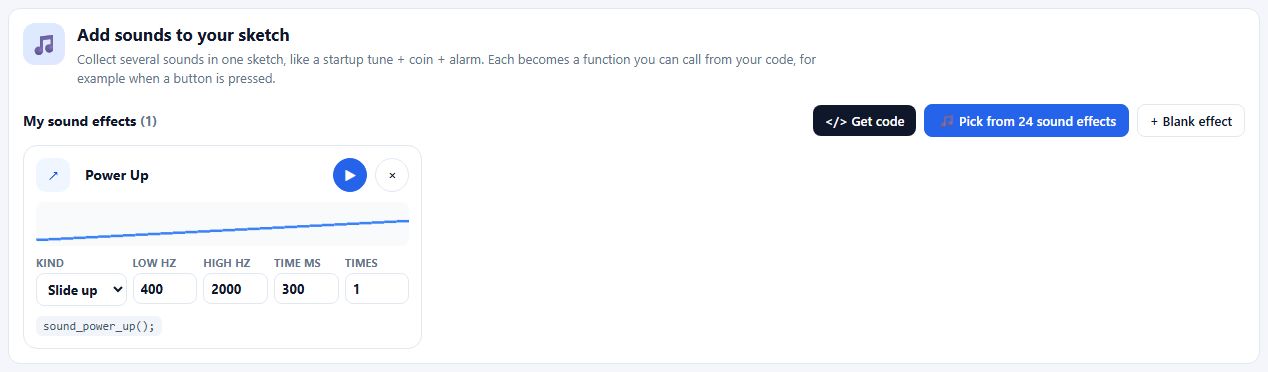
Sound effects are short sounds for events in your project, like a button press, a score or an error. The Add sounds to your sketch section collects them. Press Pick from 24 sound effects to open the Effects tab, or + Blank effect to make your own.
Each sound card has a name, a play button and five settings. Kind sets the shape: slide up, slide down, up and back, wobble, beep beep or random bleeps. Low Hz and High Hz set the pitch range, Time ms the length and Times how often it repeats. The card shows the function name it gets in the sketch, such as sound_coin();, so you know exactly what to call from your code.
Generate Code: three kinds of sketch
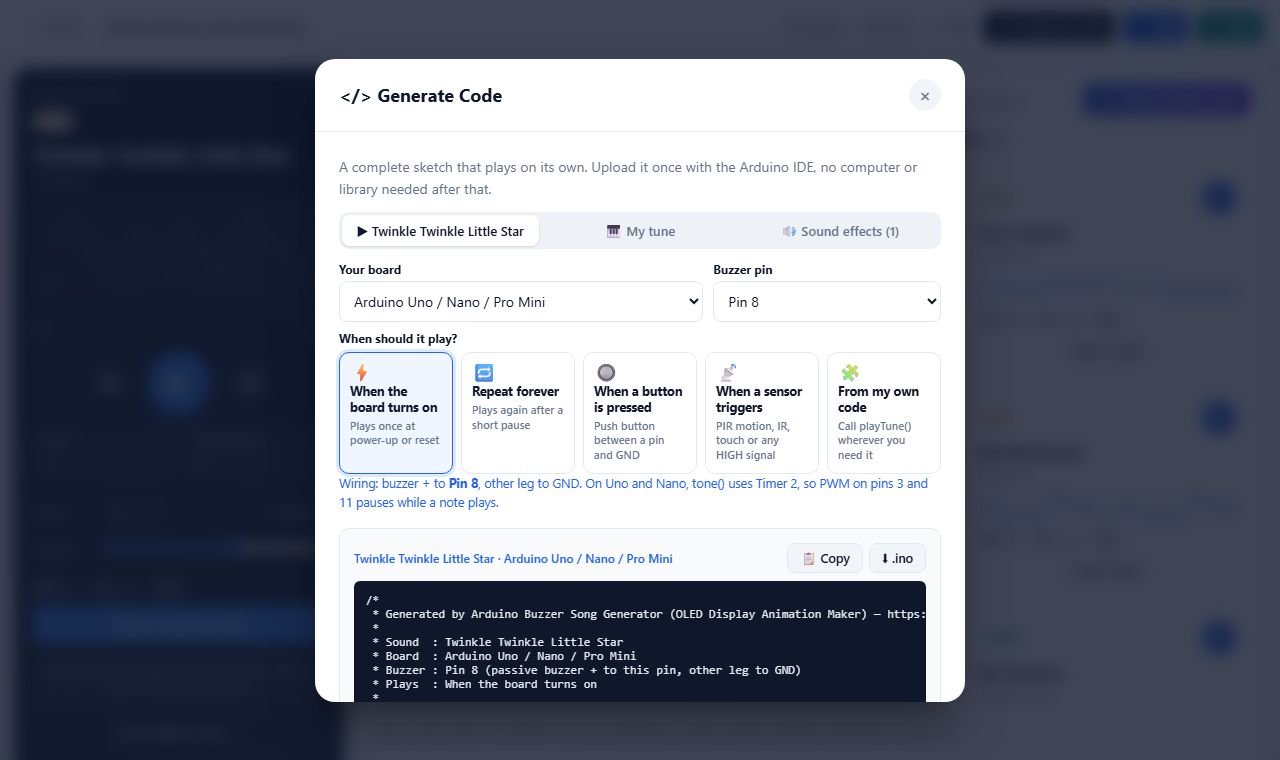
Generate Code in the header, Generate code in Your tune, Get code in the sound effects section and Get Arduino code in the player all open the same window. The three buttons at the top choose what goes into the sketch:
| Choice | What the sketch contains |
|---|---|
| ▶ Now playing | Only the song or effect in the player, as playTune() |
| 🎹 Your tune | Only your grid tune, as playTune(), with its name in the header |
| 🔊 Sound effects | Only your sound effects, each as its own function, plus playSounds() that plays them all |
Then choose your board and buzzer pin. The wiring hint under the choosers updates for each board. Press Copy or download the .ino file. Every sketch starts with a credit block that lists the sound, board, pin and when it plays, so you can always see what a file does.
When should it play? Power-on, repeat, button or sensor
- When the board turns on: plays once at power-up or reset. Good for startup chimes.
- Repeat forever: plays, waits for the pause you choose (0.5 seconds to 1 minute) and plays again. Good for alarms and toys.
- When a button is pressed: adds a button pin. The code uses
INPUT_PULLUP, waits 30 ms to ignore switch bounce, plays once and waits until you let go, so one press means one play. Good for doorbells and game buttons. - When a sensor triggers: adds a sensor pin and a wait time. It plays when the pin goes HIGH, which suits a PIR motion sensor, an IR obstacle sensor or a touch sensor. Good for motion alarms and welcome sounds.
- From my own code: gives you
playTune()to call wherever you like, for exampleif (temperature > 30) playTune();.
void loop() {
  if (digitalRead(BUTTON_PIN) == LOW) {     // button pressed
    delay(30);                              // ignore switch bounce
    if (digitalRead(BUTTON_PIN) == LOW) {
      playTune();
      while (digitalRead(BUTTON_PIN) == LOW) delay(10);  // one press = one play
    }
  }
}
Live play over USB: hear every song on the real buzzer
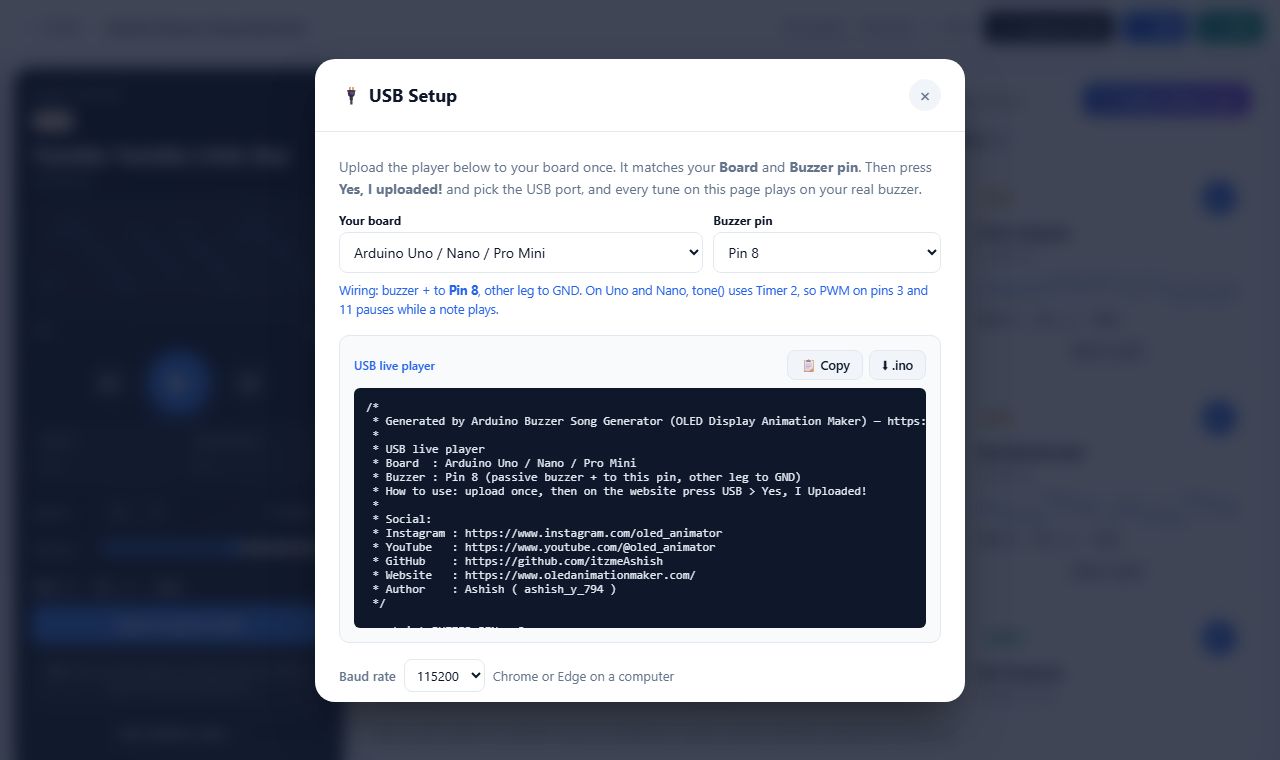
- Press USB at the top of the tool and pick your board and buzzer pin.
- Copy or download the USB live player and upload it once with the Arduino IDE. Close the Serial Monitor afterwards.
- Press Yes, I Uploaded! and choose your board's port. The status dot turns green and shows USB connected.
- Now every Play in the tool also plays on the buzzer: library cards, the player, your grid tune and sound effects. Stop stops the board too.
The page sends one note at a time over Web Serial and waits for the board to answer before sending the next, so the timing stays steady. Web Serial works in Chrome and Edge on Windows, Mac, Linux and ChromeOS. The USB live player works on every board in the list.
Live play over WiFi with ESP8266 or ESP32
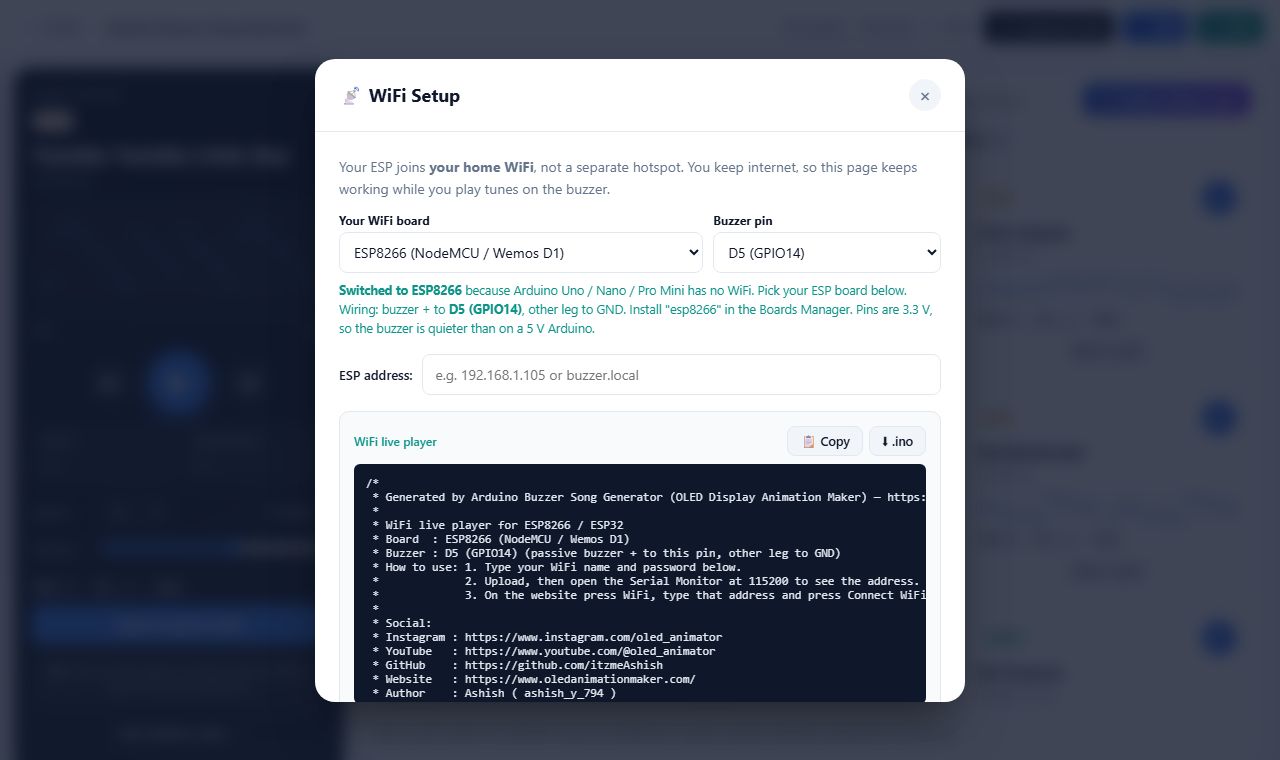
- Press WiFi. Only boards with WiFi are listed: ESP8266, ESP32, ESP32-C3, C6 and S3.
- Type your WiFi name and password into
WIFI_NAMEandWIFI_PASSin the sketch and upload it once. - Open the Serial Monitor at 115200. The board beeps and prints a line like
Ready! Board address: 192.168.1.105. - Type that address into the box and press Connect WiFi. Your phone or computer must be on the same WiFi.
The board also answers to the name buzzer.local, which works on most computers and iPhones but often not on Android, so the number is the safe choice. Because this website uses a secure https address and your board uses plain http on your home network, browsers do not let the page talk to it directly. Instead, each song travels in the address of a small tab that the board answers and closes again within a second. If your browser blocks it, allow pop-ups for this site.
Supported boards and buzzer pins
| Board | Suggested buzzer pin | Live play | Board package |
|---|---|---|---|
| Arduino Uno, Nano, Pro Mini | Pin 8 | USB | Arduino AVR Boards |
| Arduino Mega 2560 | Pin 8 | USB | Arduino AVR Boards |
| Arduino Leonardo, Micro, Pro Micro | Pin 9 | USB | Arduino AVR Boards |
| Arduino Nano Every | Pin 8 | USB | Arduino megaAVR Boards |
| Arduino Uno R4 Minima, R4 WiFi | Pin 8 | USB | Arduino UNO R4 Boards |
| Arduino Nano 33 IoT, BLE, RP2040 Connect | D2 | USB | Arduino SAMD / Mbed boards |
| ESP8266 (NodeMCU, Wemos D1 mini) | D5 (GPIO14) | USB and WiFi | esp8266 |
| ESP32 DevKit | GPIO 25 | USB and WiFi | esp32, version 2.0 or newer |
| ESP32-C3, ESP32-C6, ESP32-S3 | GPIO 4 | USB and WiFi | esp32, version 2.0 or newer |
| Raspberry Pi Pico, Pico W, Pico 2 | GP15 | USB | Raspberry Pi Pico/RP2040 by Earle Philhower |
| STM32 Blue Pill, Black Pill | PA8 | USB | STM32 MCU based boards (STM32duino) |
| Other Arduino-compatible boards | Any digital pin | USB | Any core that includes tone() |
We checked that the generated sketches compile with arduino-cli for the Uno, Mega, Leonardo, NodeMCU ESP8266, ESP32, ESP32-C3 and ESP32-S3. The other boards use the same standard tone() function from their official board packages.
How to wire a buzzer, a button and a sensor
Buzzer: the + leg (often the longer one) goes to the buzzer pin and the other leg to GND. A 100 Ω resistor in series lowers the volume a little and protects the pin.
Passive or active? A passive buzzer has no oscillator inside, so it plays whatever frequency the board sends and can play songs. An active buzzer usually has a sticker on top and beeps at one fixed pitch as soon as it gets power, so it can only beep on and off. To check, touch it to 5 V and GND for a moment: an active buzzer beeps, a passive one only clicks.
Button: one leg to the button pin, the other to GND. No resistor is needed because the code turns on the internal pull-up. A magnetic reed switch works the same way, which is handy for a box that plays a song when it opens.
Sensor: OUT to the sensor pin, VCC to 5 V (or 3.3 V for ESP boards) and GND to GND. A PIR sensor needs about a minute to settle after power-up.
How the generated Arduino buzzer code works
struct Step { uint16_t hz; uint16_t ms; };
const Step tune[] PROGMEM = {
  {523, 250},  // C5
  {587, 250},  // D5
  {0, 125},    // silence
};
const uint16_t TUNE_STEPS = sizeof(tune) / sizeof(tune[0]);

void playTune() {
  for (uint16_t i = 0; i < TUNE_STEPS; i++) {
    uint16_t hz = pgm_read_word(&tune[i].hz);
    uint16_t ms = pgm_read_word(&tune[i].ms);
    if (hz) tone(BUZZER_PIN, hz, ms * 9 / 10);   // 90% sound, 10% gap
    delay(ms);
  }
  noTone(BUZZER_PIN);
}
The tune is a list of steps, each with a frequency in hertz (0 means silence) and a length in milliseconds. PROGMEM keeps the list in flash memory, so even a long song leaves the 2 KB of RAM on an Uno free for your own code. Each note sounds for 90% of its length so repeated notes stay separate, while sound effects use the full length for smooth slides. Sound effects are written as small loops, for example a slide that steps through frequencies with map() every 10 ms, which keeps them short in memory. Because the sketch only uses tone(), delay() and PROGMEM, the Uno version also runs in Tinkercad Circuits.
Tips for a louder, cleaner buzzer sound
- Play higher. Small piezo buzzers are quiet below about 1,000 Hz and loudest between 2,000 and 4,000 Hz. Pick the C6 to C8 range on the grid.
- Use a 5 V board for volume. ESP32, ESP8266, Pico and Nano 33 pins give 3.3 V, so the same buzzer is quieter than on an Uno.
- Leave gaps between equal notes. The code adds a short gap, and an empty column on the grid makes it clearer still.
- Mind the timers. On an Uno,
tone()uses Timer 2, soanalogWrite()on pins 3 and 11 pauses while a note plays. On a Mega the same happens on pins 9 and 10.
Arduino buzzer project ideas
- Musical doorbell: a button trigger with Happy Birthday, a festive song or your own jingle.
- School bell: repeat a short tune, or start it from a real-time clock module in your own code.
- Motion alarm: a PIR sensor with the sensor trigger and the Siren or Alarm effect.
- Surprise box: a reed switch in the lid plays a song when the box opens.
- Arcade game: Coin, Level complete and Game over effects called from your game logic.
- Screen and sound: a startup animation from the OLED Animation Maker, or animated eyes from the OLED Robot Eyes Generator, with a matching chime.
Troubleshooting
| Problem | What to do |
|---|---|
| The buzzer only clicks or beeps at one pitch | It is an active buzzer. Use a passive buzzer for songs. |
| No sound at all | Check that the pin in the code matches your wiring and that the other leg goes to GND. |
| Very quiet | Move the tune higher (C6 to C8), use a 5 V board, remove a large series resistor. |
| Upload fails with "port busy" | Close the Serial Monitor and disconnect USB live play in the tool, then upload again. |
| USB connected but the board does not answer | Upload the USB live player for the same board and baud rate, then press Yes, I Uploaded! again. |
| The USB button does nothing | Use Chrome or Edge on a computer. Firefox and Safari do not support Web Serial. |
| WiFi does not connect | Check the WiFi name and password, use a 2.4 GHz network, type the number address instead of buzzer.local, and allow pop-ups for this site. |
| Two equal notes sound like one | Leave an empty column between them on the grid. |
Questions
How do I play a song on a buzzer with Arduino?
Connect a passive buzzer between a digital pin and GND, pick or draw a song in the generator, press Generate Code, choose your board and pin, then copy the sketch into the Arduino IDE and upload it. No library is needed.
Do I need a passive or an active buzzer?
A passive buzzer. It plays any frequency the board sends, so it can play melodies. An active buzzer has a fixed pitch and can only beep on and off.
Which boards does the buzzer code work on?
Arduino Uno, Nano, Pro Mini, Mega, Leonardo, Micro, Nano Every, Uno R4, Nano 33 boards, ESP8266, ESP32, ESP32-C3, C6 and S3, Raspberry Pi Pico and STM32 boards, plus any Arduino core that includes tone().
Can I convert an MP3 into Arduino buzzer code?
Yes, with Audio to notes. It works best with humming, whistling or a solo instrument, because a buzzer plays one note at a time.
Can I write the tune in sargam?
Yes. Paste notes reads Hindi sargam, English sargam with komal and tivra notes, and letter notes. Lyric lines are skipped.
Can the song play when a button is pressed?
Yes. Choose When a button is pressed in Generate Code. The sketch handles the pull-up and switch bounce for you.
Can I play songs on the board without uploading each time?
Yes. Upload the USB live player once, or the WiFi live player on an ESP board, and every song you play in the tool also plays on the buzzer.
Does the generated code work in Tinkercad?
Yes. The Uno sketch uses only tone(), delay() and PROGMEM, which Tinkercad Circuits supports.
Why is my buzzer so quiet?
Small piezo buzzers are quiet below about 1,000 Hz. Move the tune higher, use a 5 V board, and remove any large series resistor.
Why aren't film and pop songs in the library?
Their melodies are copyrighted, so the library only has traditional, public-domain and national-anthem tunes. For a song you like, you can still make a version for personal use with Create custom tune, Paste notes or Audio to notes.
Is it free?
Yes. There is no sign-up, and audio you convert stays on your device.
Open the Arduino Buzzer Song Generator →More free tools
Draw display animations in the OLED Animation Maker, convert pictures with Image to Byte Array, make animated eyes with the OLED Robot Eyes Generator, or browse all tools. New to displays? Start with the SSD1306 I2C tutorial. Want to write the code by hand? See Arduino buzzer songs code with a tested Happy Birthday sketch.